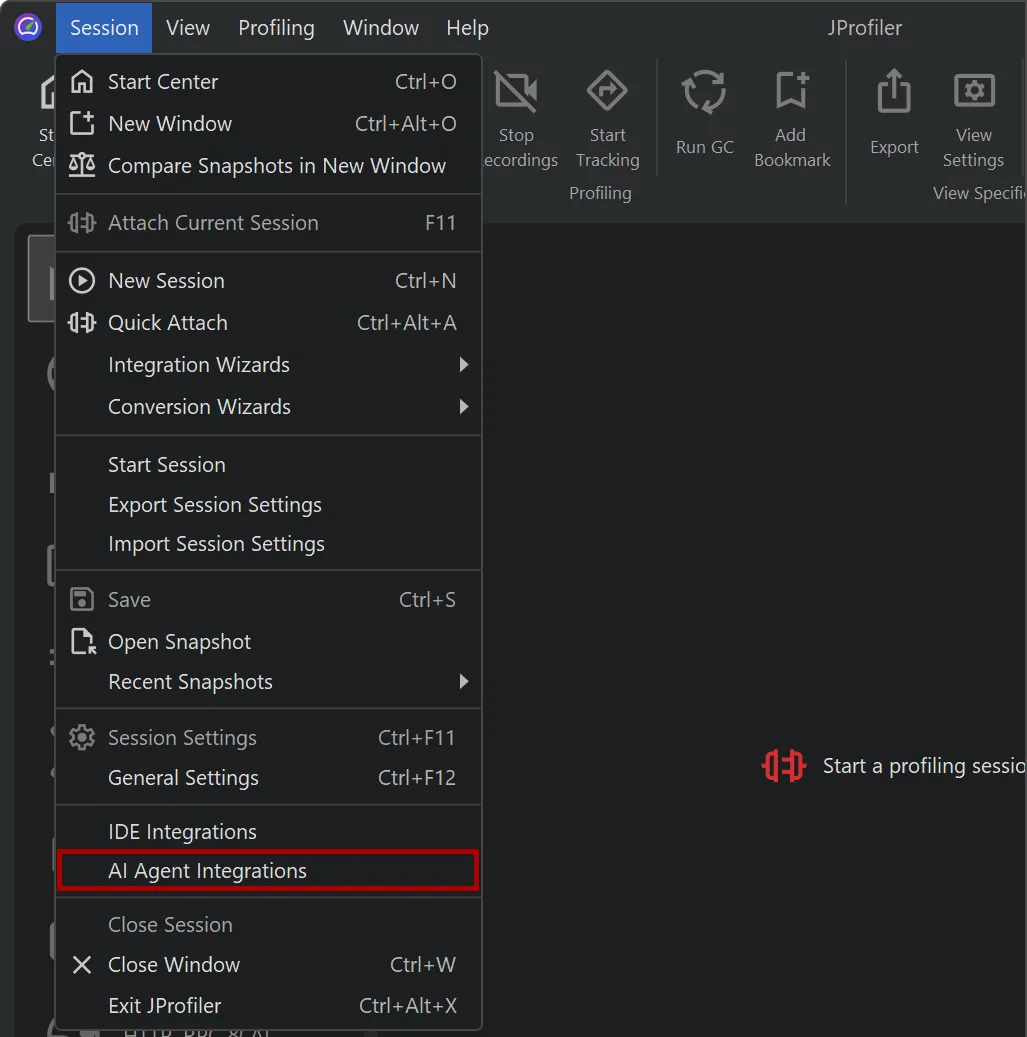
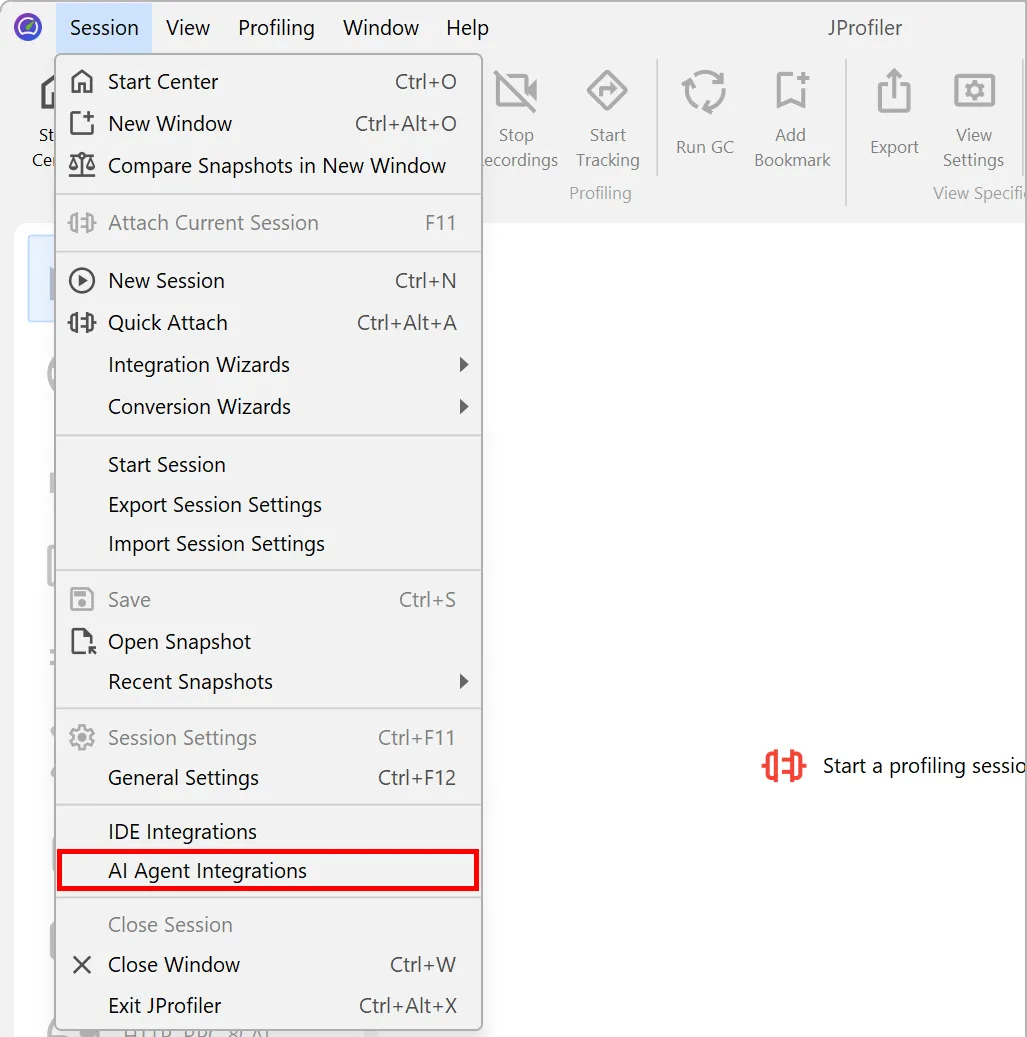
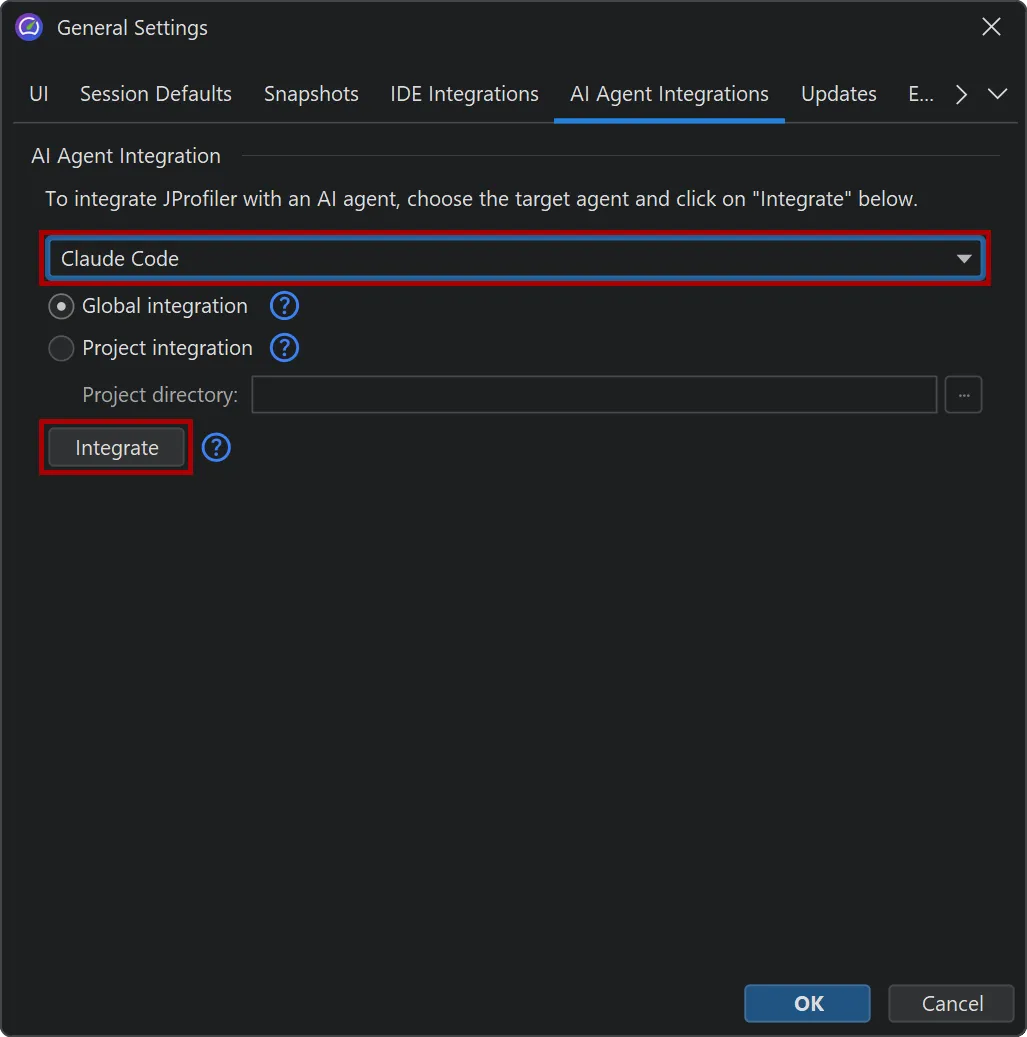
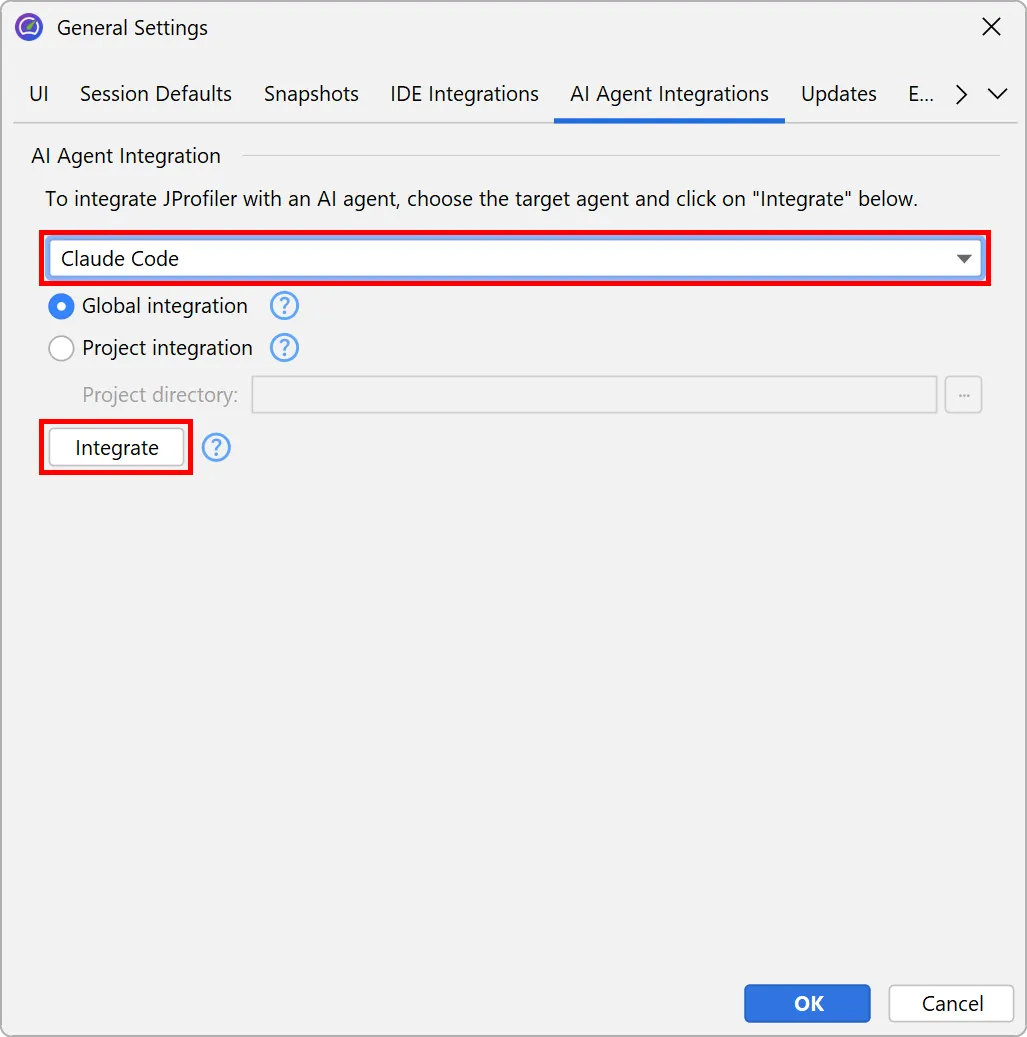
Run this command in PowerShell:
irm https://www.ej-technologies.com/jprofiler/mcp/install.ps1 | iex
Run this command in your terminal:
curl -fsSL https://www.ej-technologies.com/jprofiler/mcp/install.sh | sh
Requires Node.js to be installed. Select your agent and follow the instructions below.
Run this command in Claude Code:
claude mcp add jprofiler -- npx -y @ej-technologies/jprofiler-mcp@latest
In Claude Desktop, go to Settings → Developer → Edit Config to open your configuration file, then add the following:
{
  "mcpServers": {
    "JProfiler": {
      "command": "npx",
      "args": ["-y", "@ej-technologies/jprofiler-mcp@latest"]
    }
  }
}
Open the Cline extension in your IDE and click the MCP Servers icon. Click Configure MCP Servers to open the settings file, then add the following:
{
  "mcpServers": {
    "JProfiler": {
      "command": "npx",
      "args": ["-y", "@ej-technologies/jprofiler-mcp@latest"]
    }
  }
}
Run this command:
codex mcp add JProfiler -- npx -y @ej-technologies/jprofiler-mcp@latest
In Cursor, go to Settings → Tools & MCPs → Add Custom MCP, then add the following configuration:
{
  "mcpServers": {
    "JProfiler": {
      "command": "npx",
      "args": ["-y", "@ej-technologies/jprofiler-mcp@latest"]
    }
  }
}
Add the following to ~/.gemini/config/mcp_config.json:
{
  "mcpServers": {
    "JProfiler": {
      "command": "npx",
      "args": ["-y", "@ej-technologies/jprofiler-mcp@latest"]
    }
  }
}
Configure in your JetBrains IDE:
Go to Tools → Junie → MCP Settings, then add a new server with the content:
{
  "mcpServers": {
    "JProfiler": {
      "command": "npx",
      "args": ["-y", "@ej-technologies/jprofiler-mcp@latest"]
    }
  }
}
Add the following to ~/.junie/mcp/mcp.json:
{
  "mcpServers": {
    "JProfiler": {
      "command": "npx",
      "args": ["-y", "@ej-technologies/jprofiler-mcp@latest"]
    }
  }
}
Add the following to ~/.config/opencode/opencode.json:
{
  "mcp": {
    "JProfiler": {
      "type": "local",
      "command": ["npx", "-y", "@ej-technologies/jprofiler-mcp@latest"]
    }
  }
}