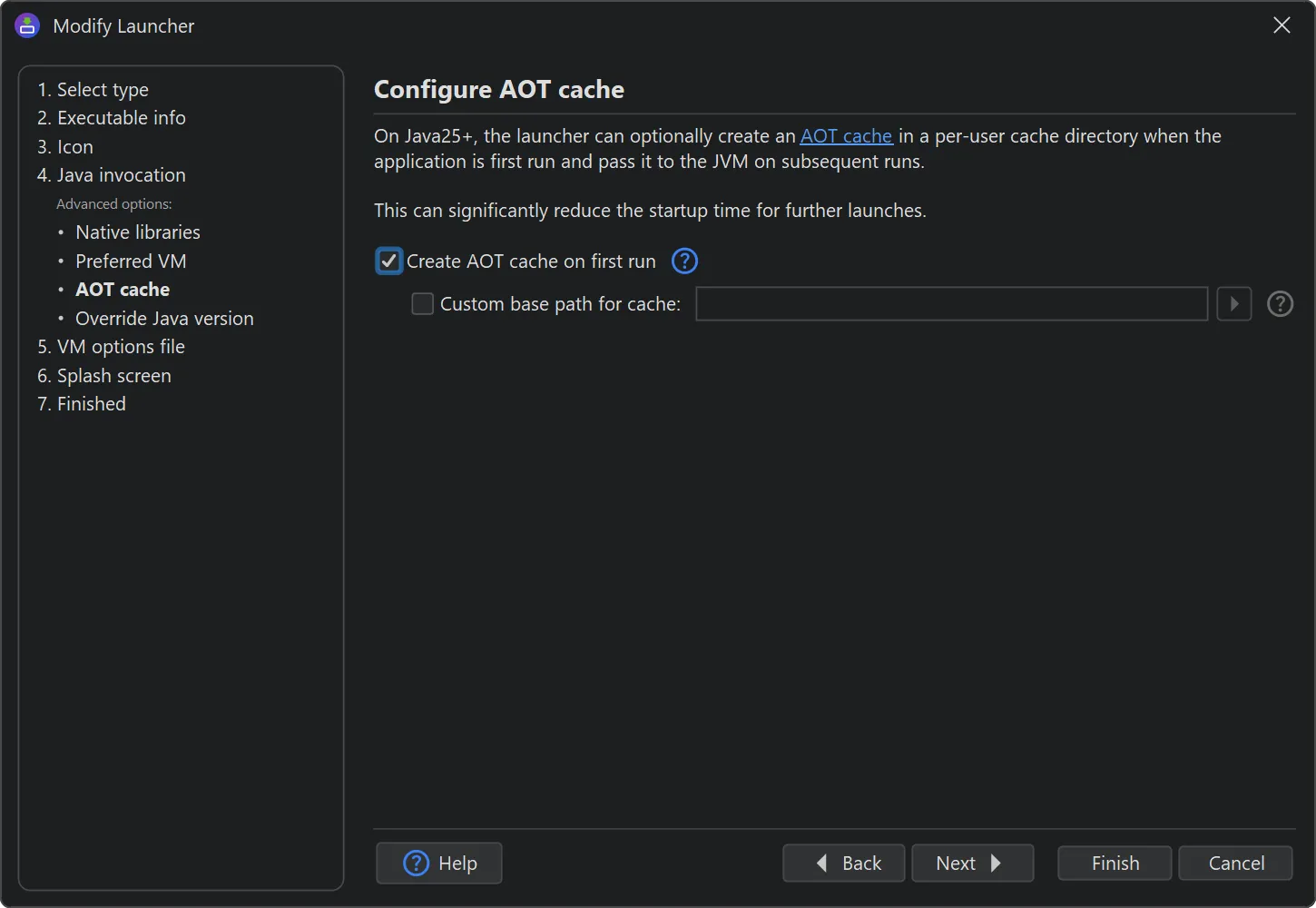
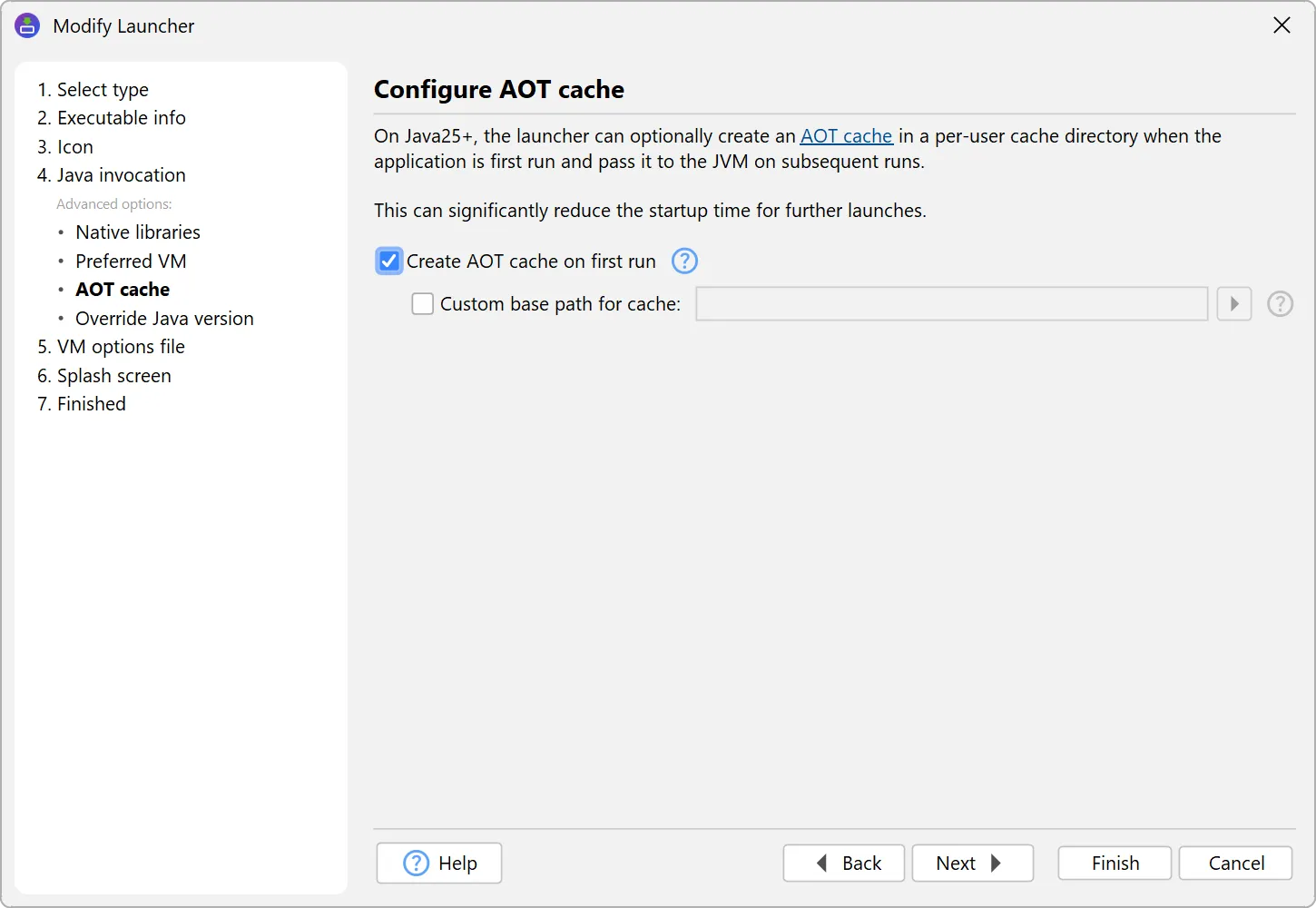
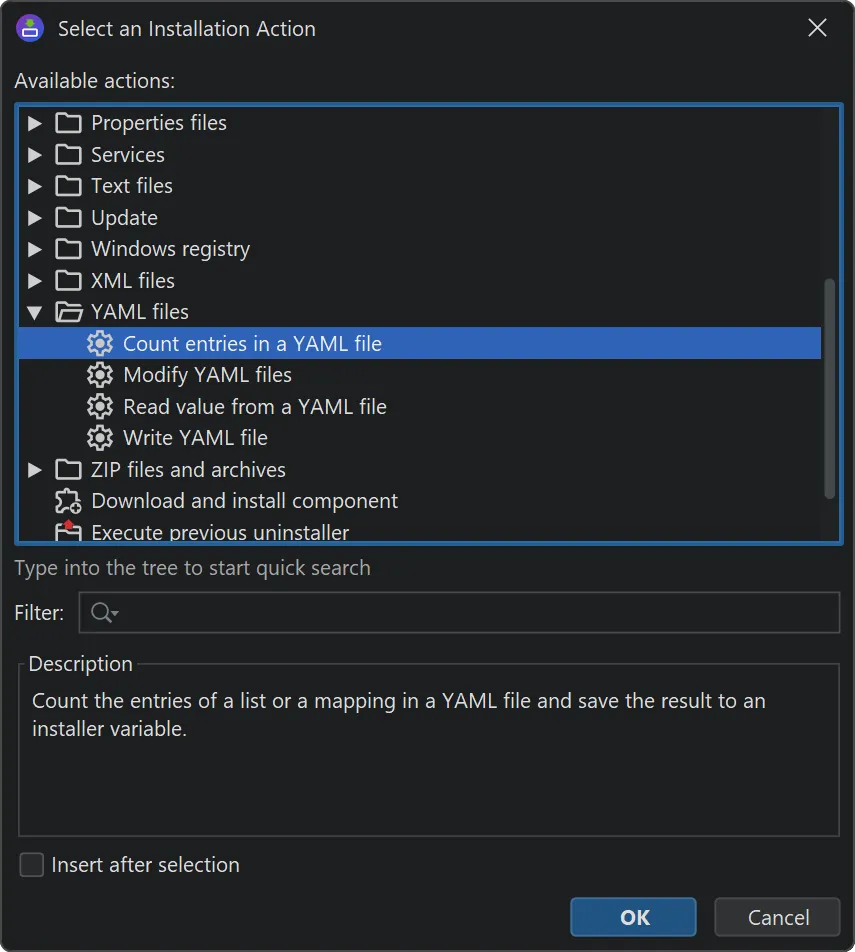
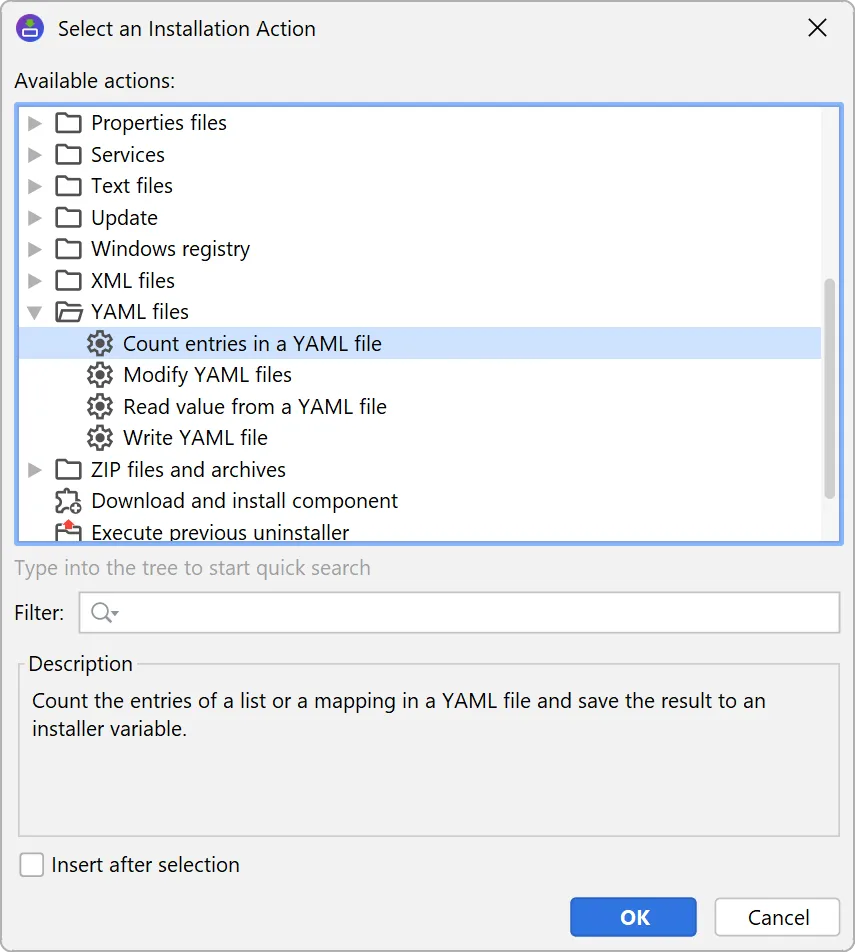
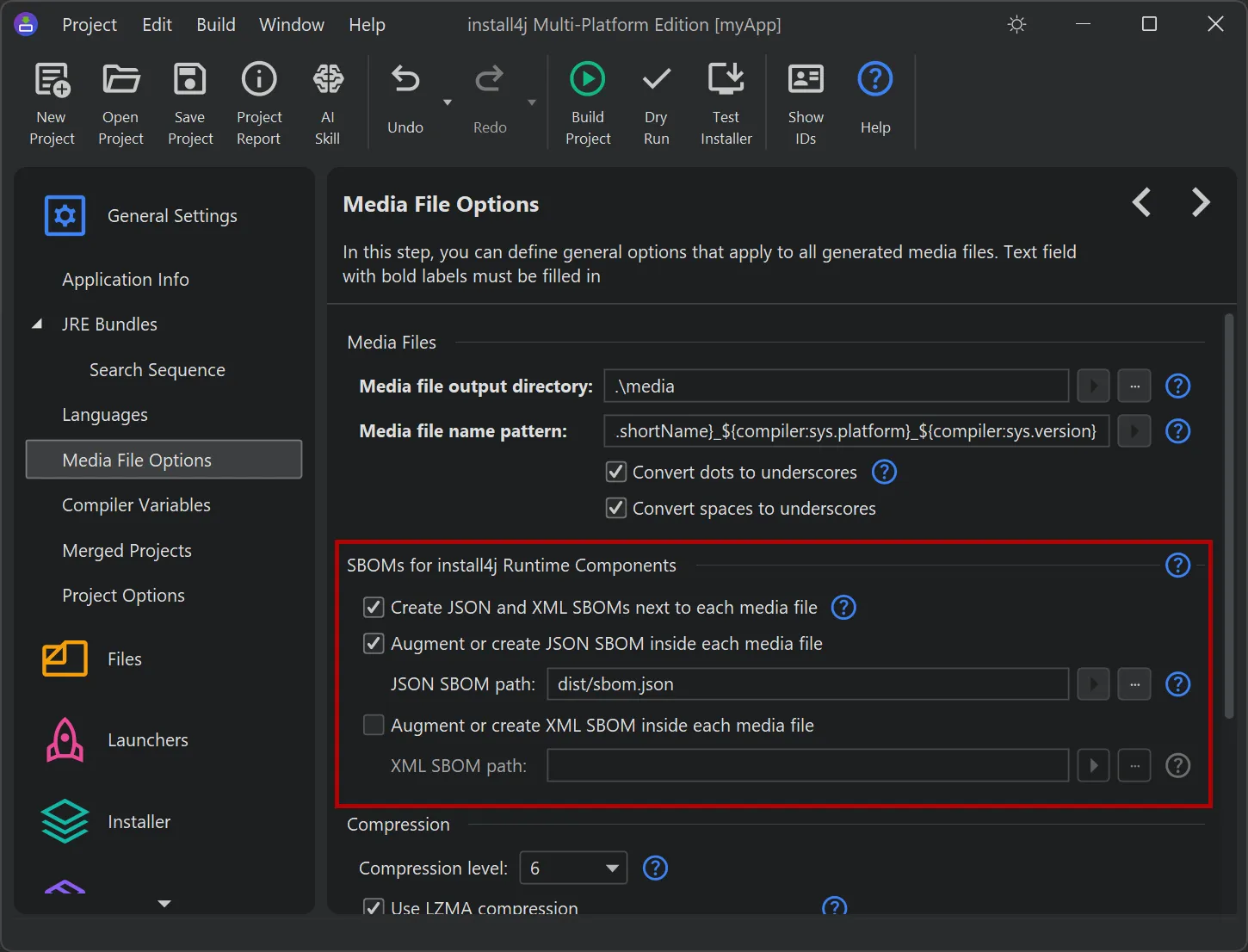
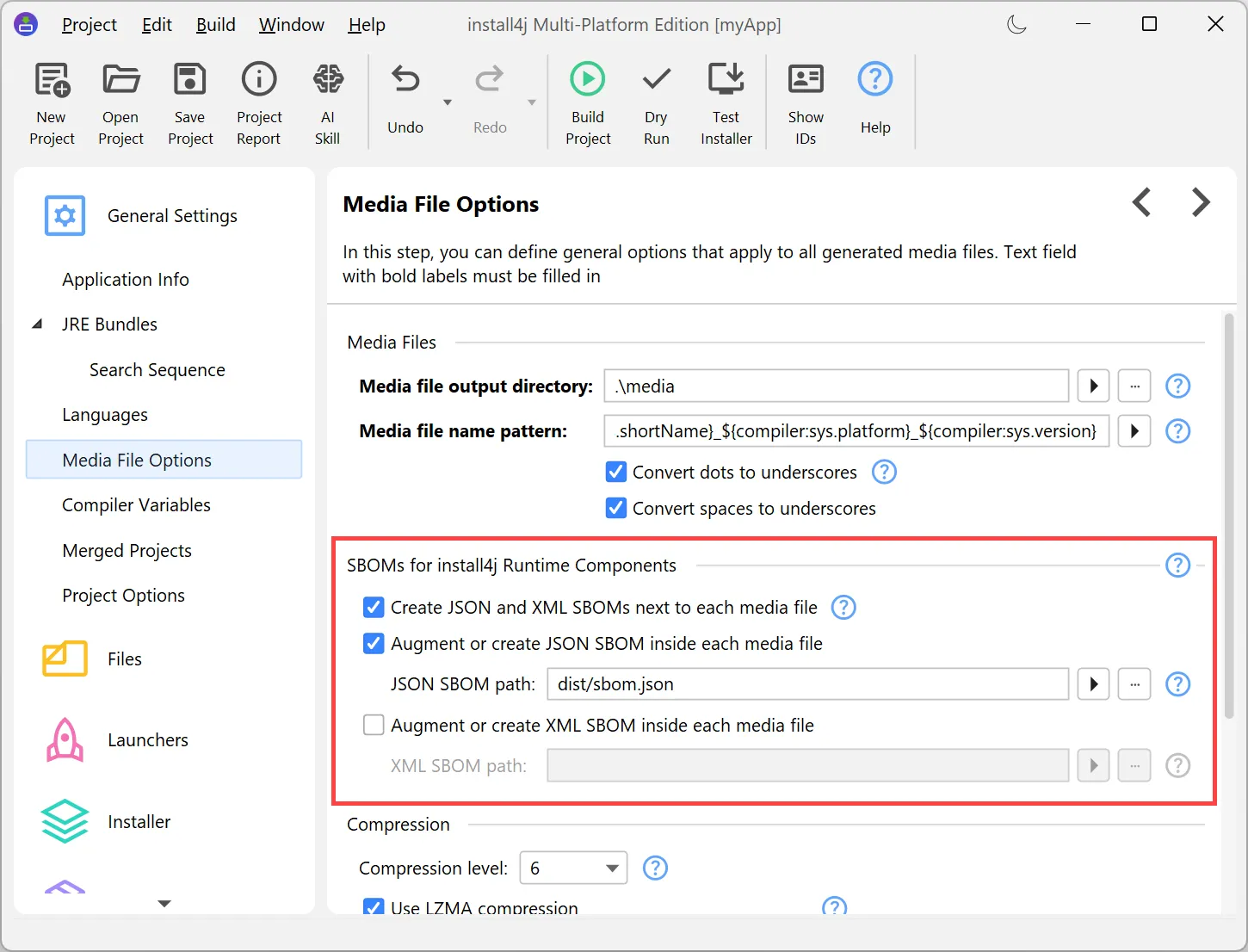
What's new in install4j

Please see the change log for a detailed list of all changes.

install4j 13.02026-06-03change log

install4j 13 can now build Windows MSIX media files.

MSIX is the modern packaging format for Windows applications. It is also the native package format for the Microsoft Store and integrates with managed deployment tools such as Microsoft Intune. An MSIX package is installed and uninstalled by Windows itself in a fully reversible way, and it can be installed by a standard user without administrator rights.

MSIX is completely separate from MSI. For MSI, install4j only generates a wrapper around the installer generated by install4j. This is because install4j concepts such as screens, actions, and scripts cannot be mapped seamlessly into the MSI model. MSIX, on the other hand, is declarative, so concepts like services, file associations, and startup tasks are translated directly into manifest entries.

An MSIX package is installed by double-clicking the .msix file or by running Add-AppxPackage in PowerShell, and no install4j installer wizard runs at install time.

Note that Code signing is mandatory for distribution of this media file type, because unsigned MSIX packages can only be installed in Windows' development mode.

ScreenshotScreenshot

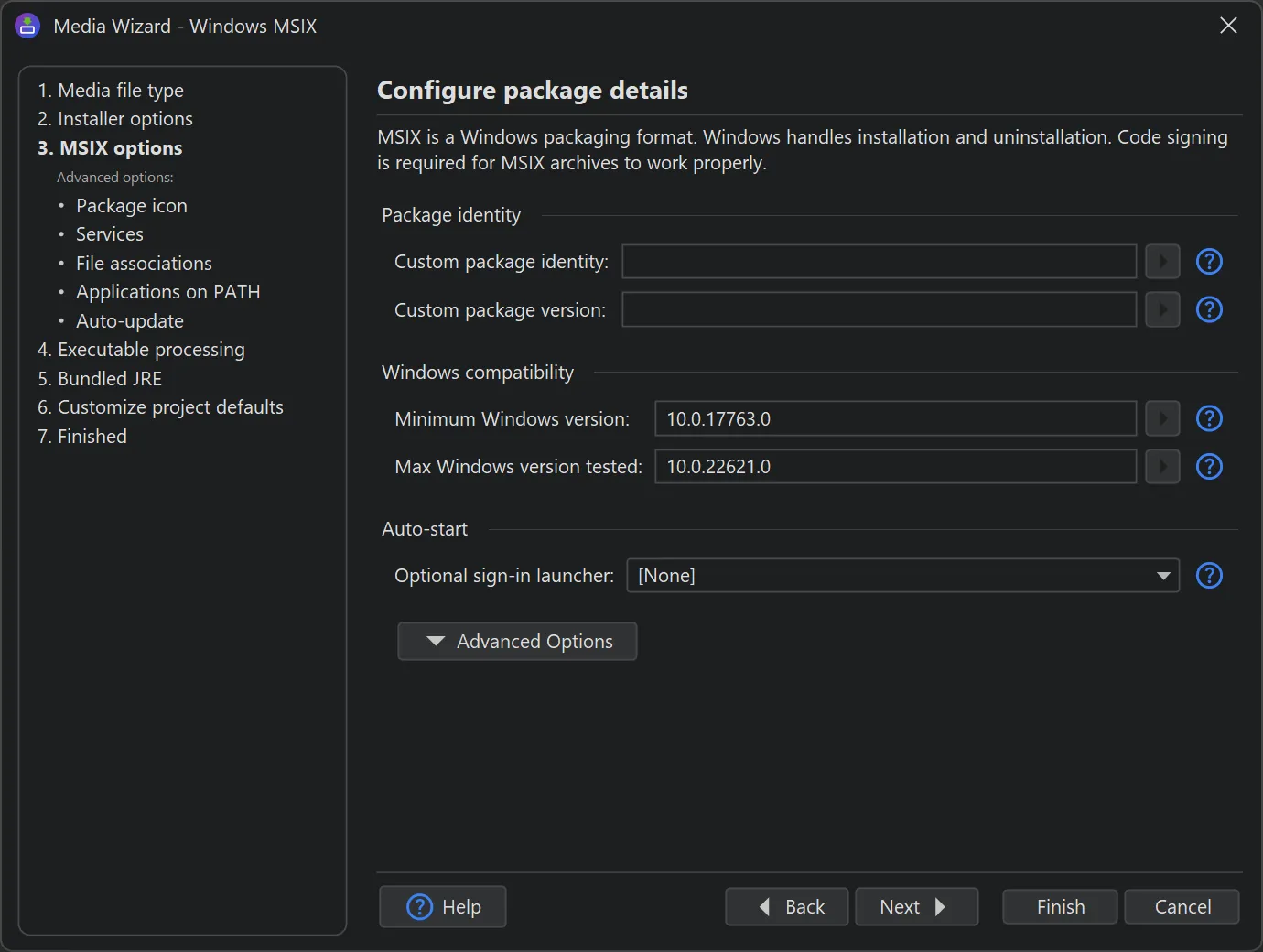
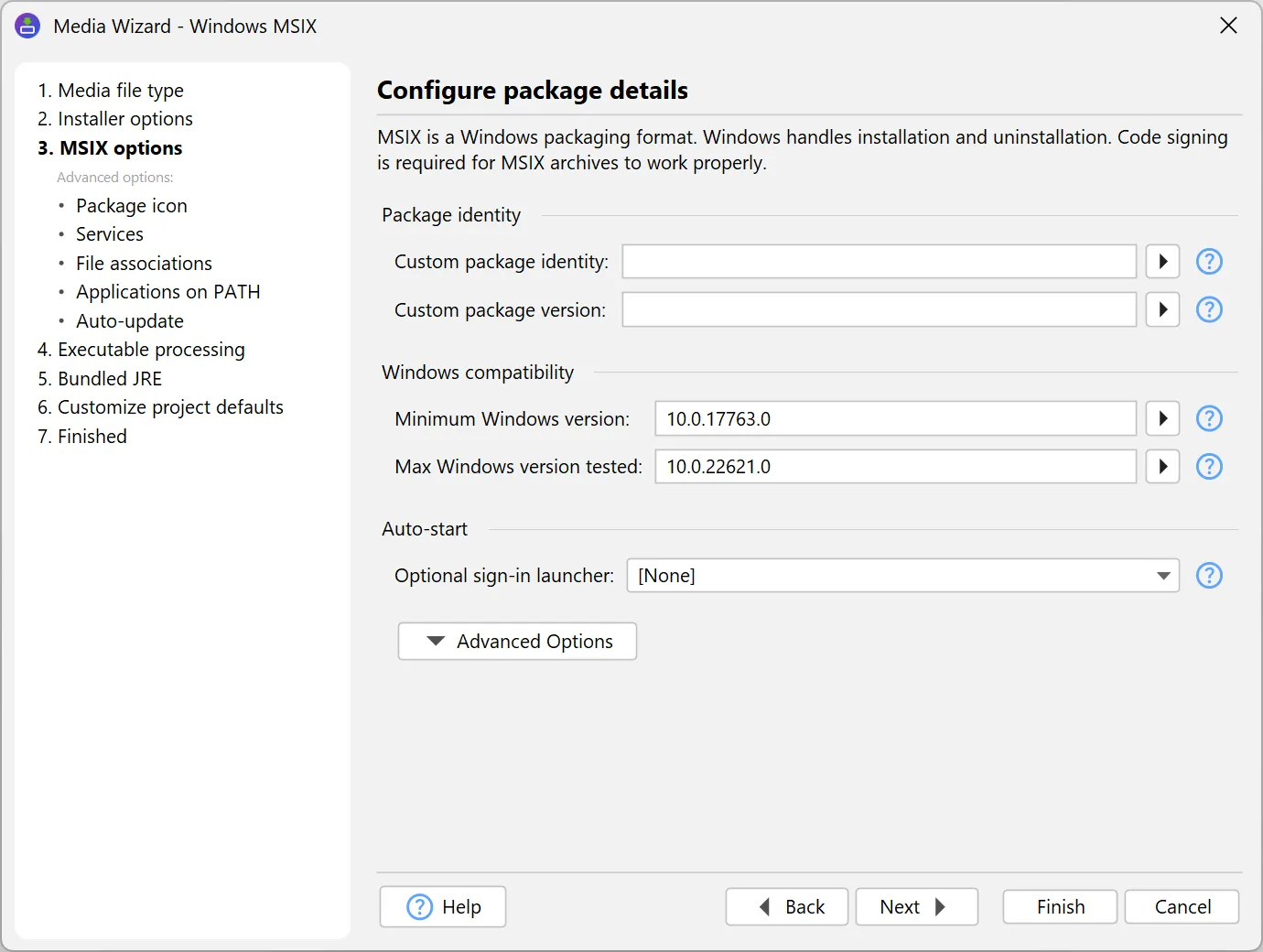
All MSIX-specific settings are configured in dedicated sub-steps of the media file wizard. On the "MSIX options" step, the package identity name, the package version, and the minimum and maximum tested Windows versions are set. You can also set a launcher as a sign-in launcher that runs automatically when the user logs on and that the user can later disable in the Windows "Startup apps" settings.

ScreenshotScreenshot

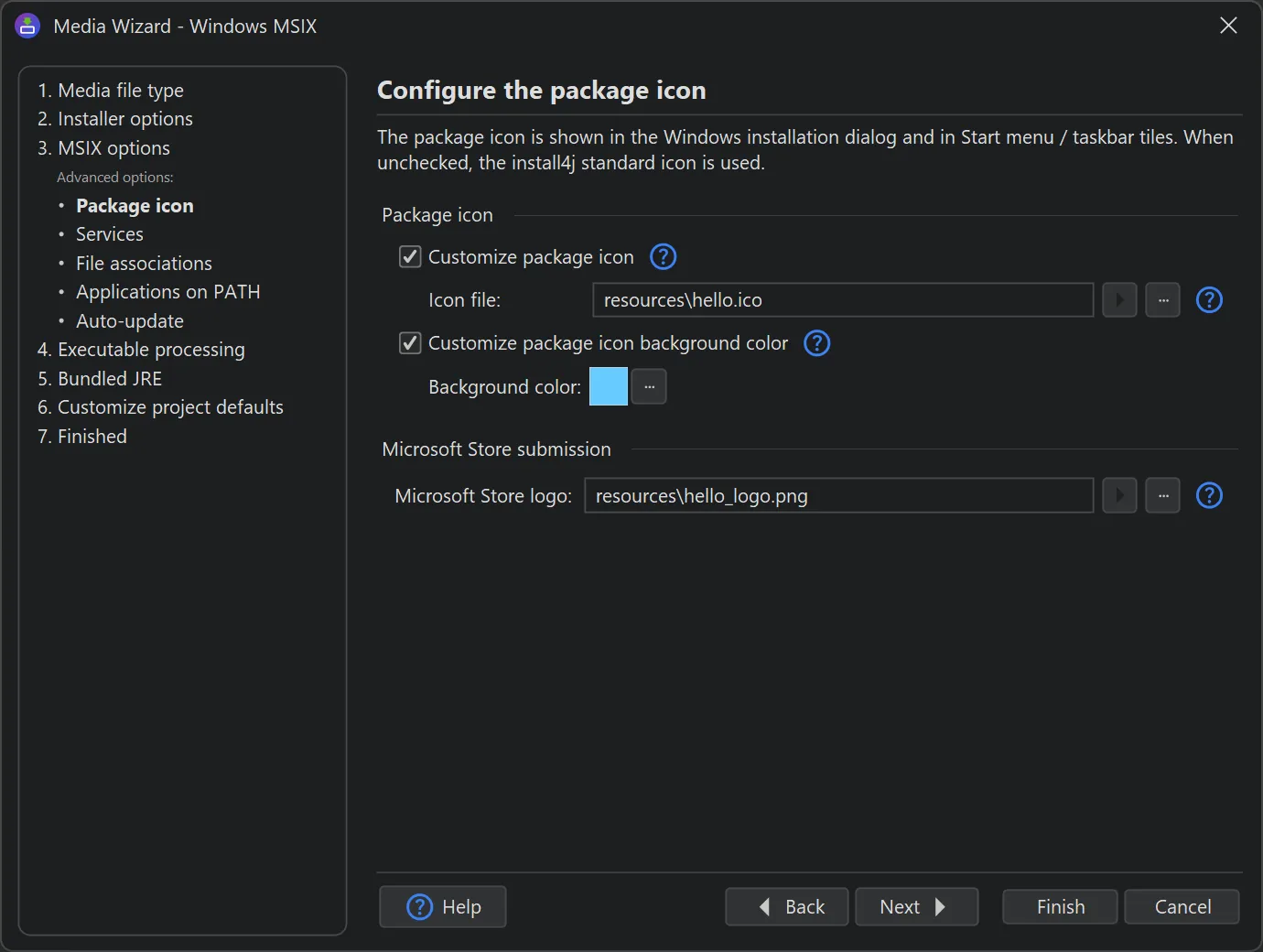
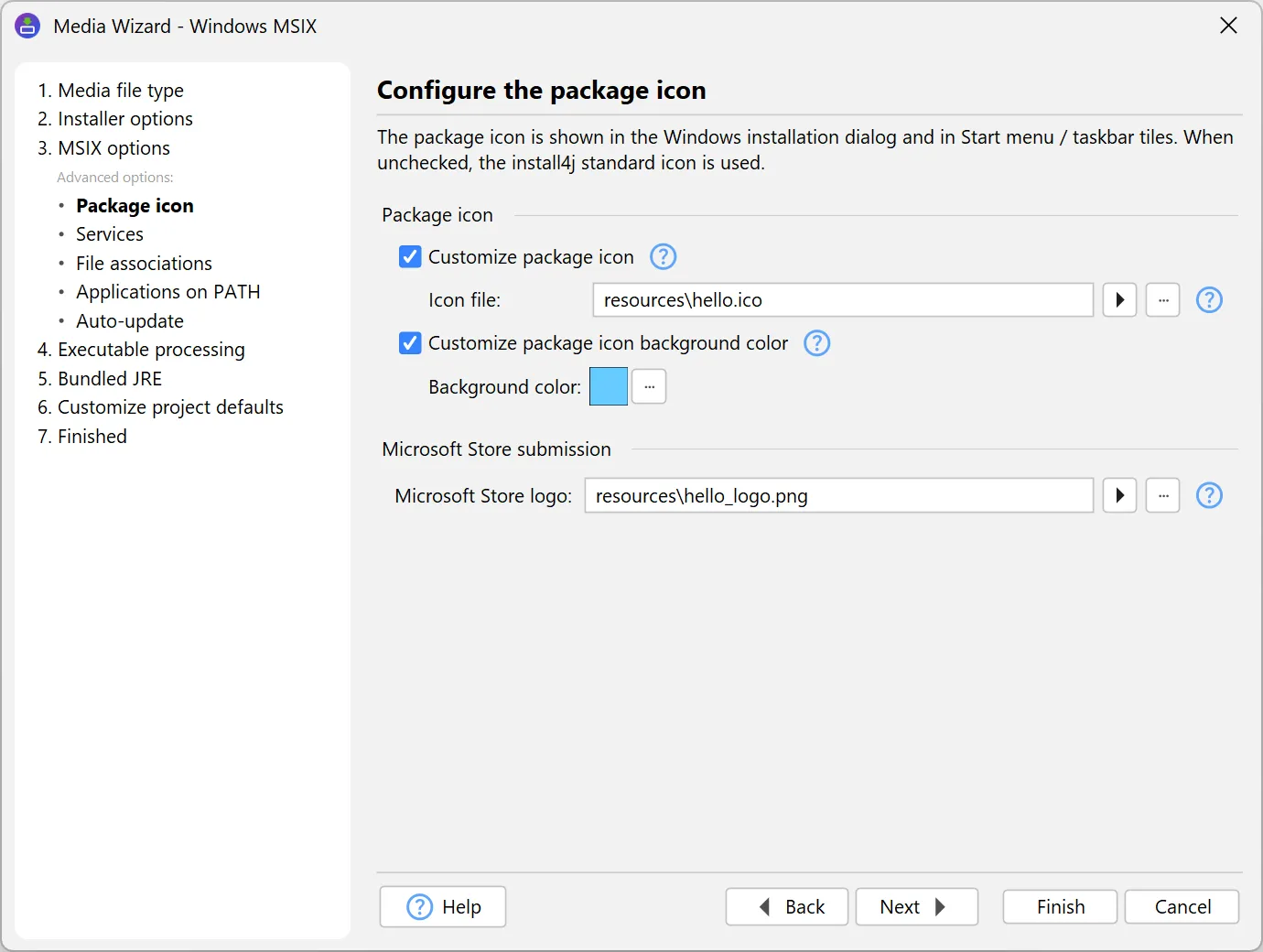
The package icon is customized on the "Package icon" sub-step. It is shown in the Windows installation dialog. A background color can be set for it so that icons with transparency are given an opaque tile. For the start menu and the task bar, the icons configured in the launcher wizard are used.

ScreenshotScreenshot

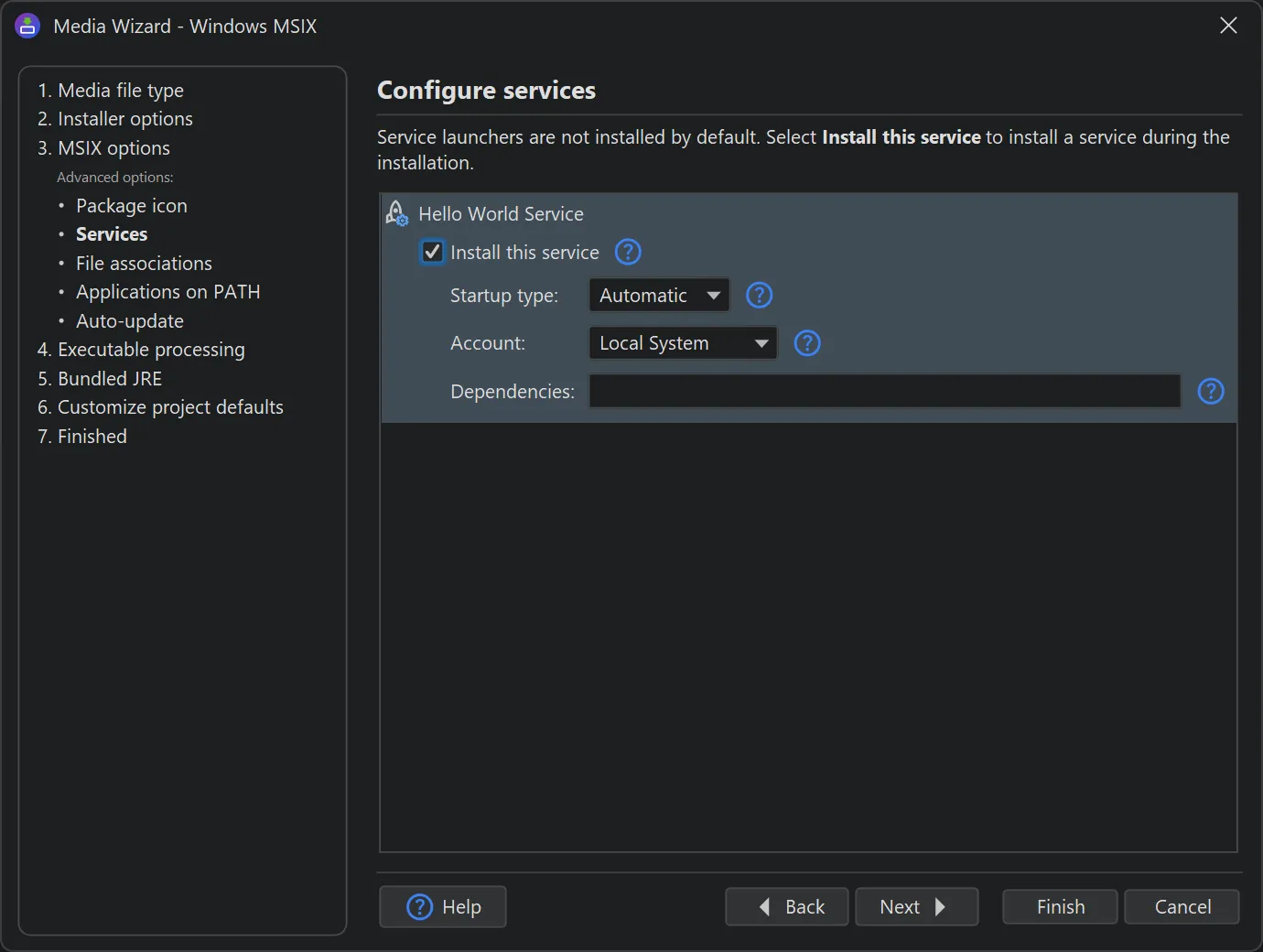
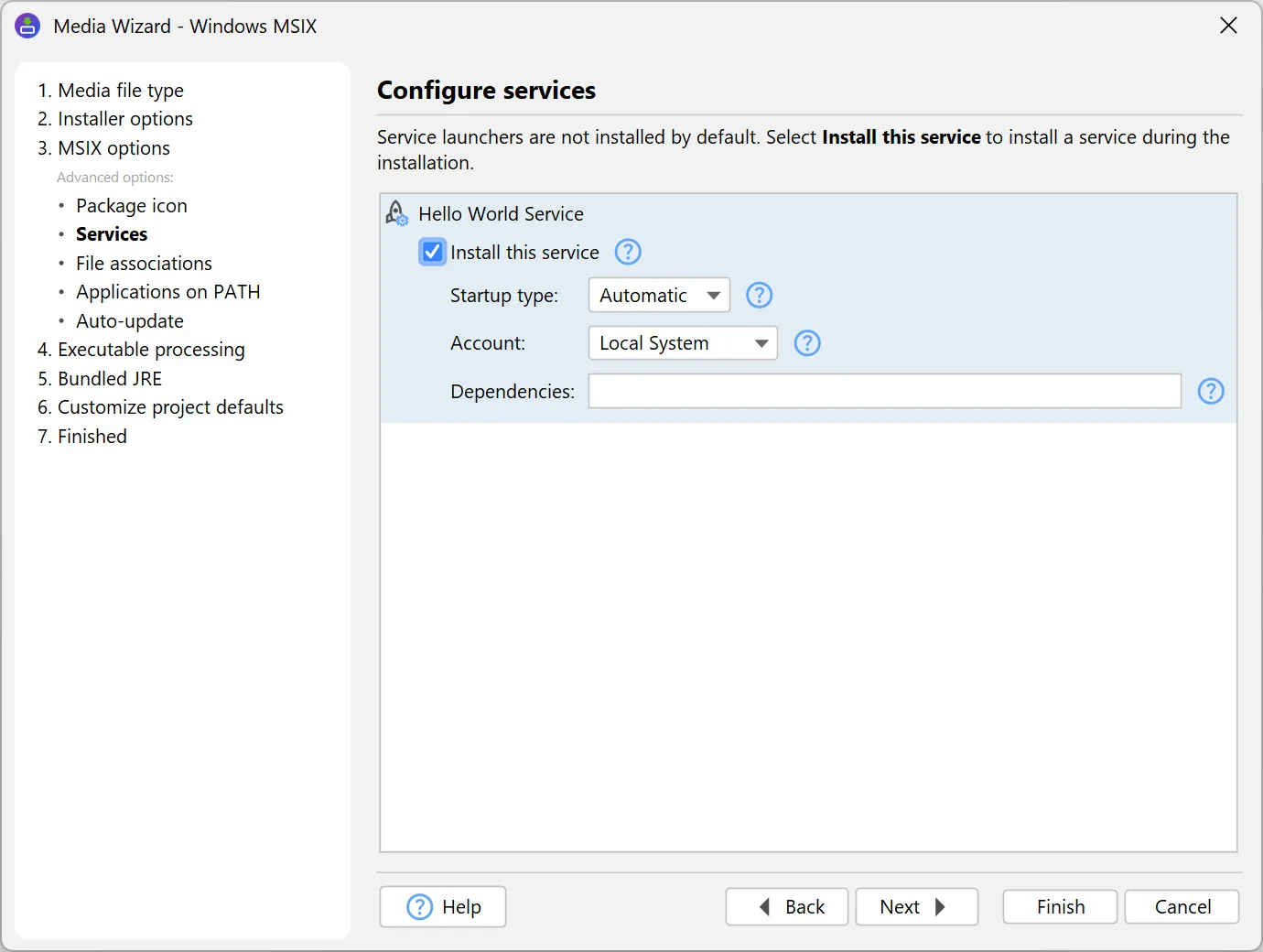
Services are chosen from the generated service launchers and are registered as Windows services through the manifest. The startup type and the service account are configured per launcher on the "Services" sub-step.

ScreenshotScreenshot

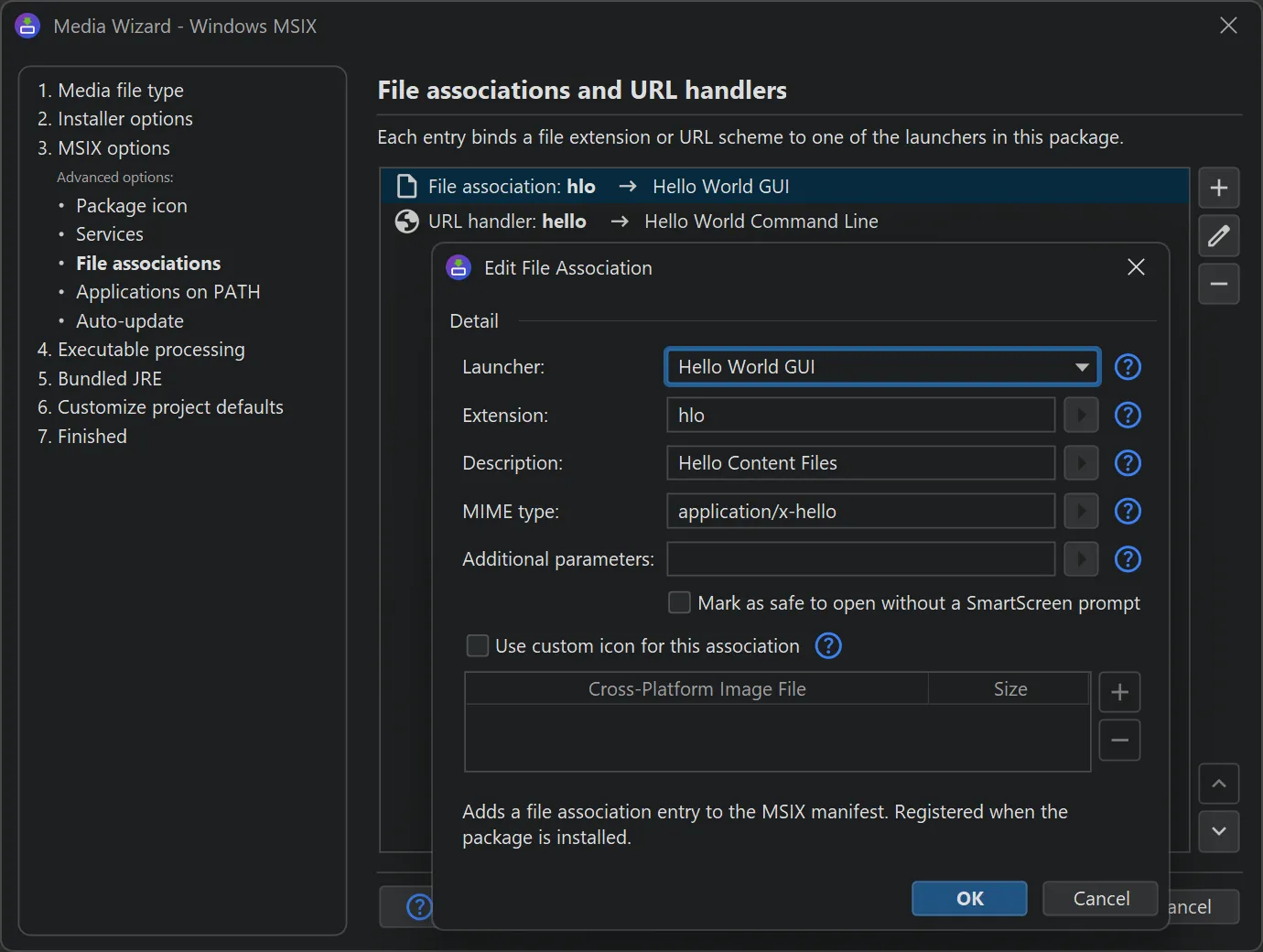
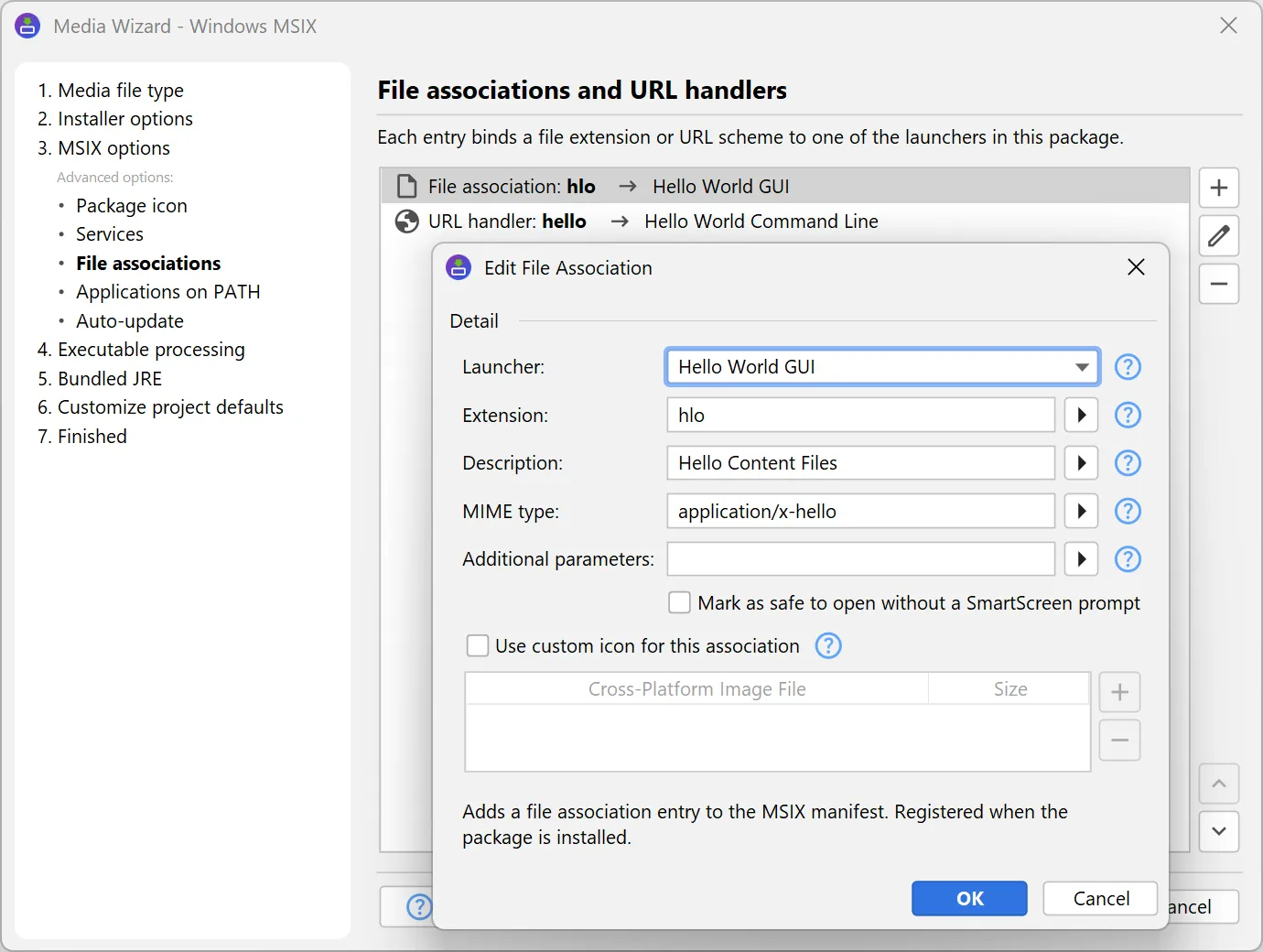
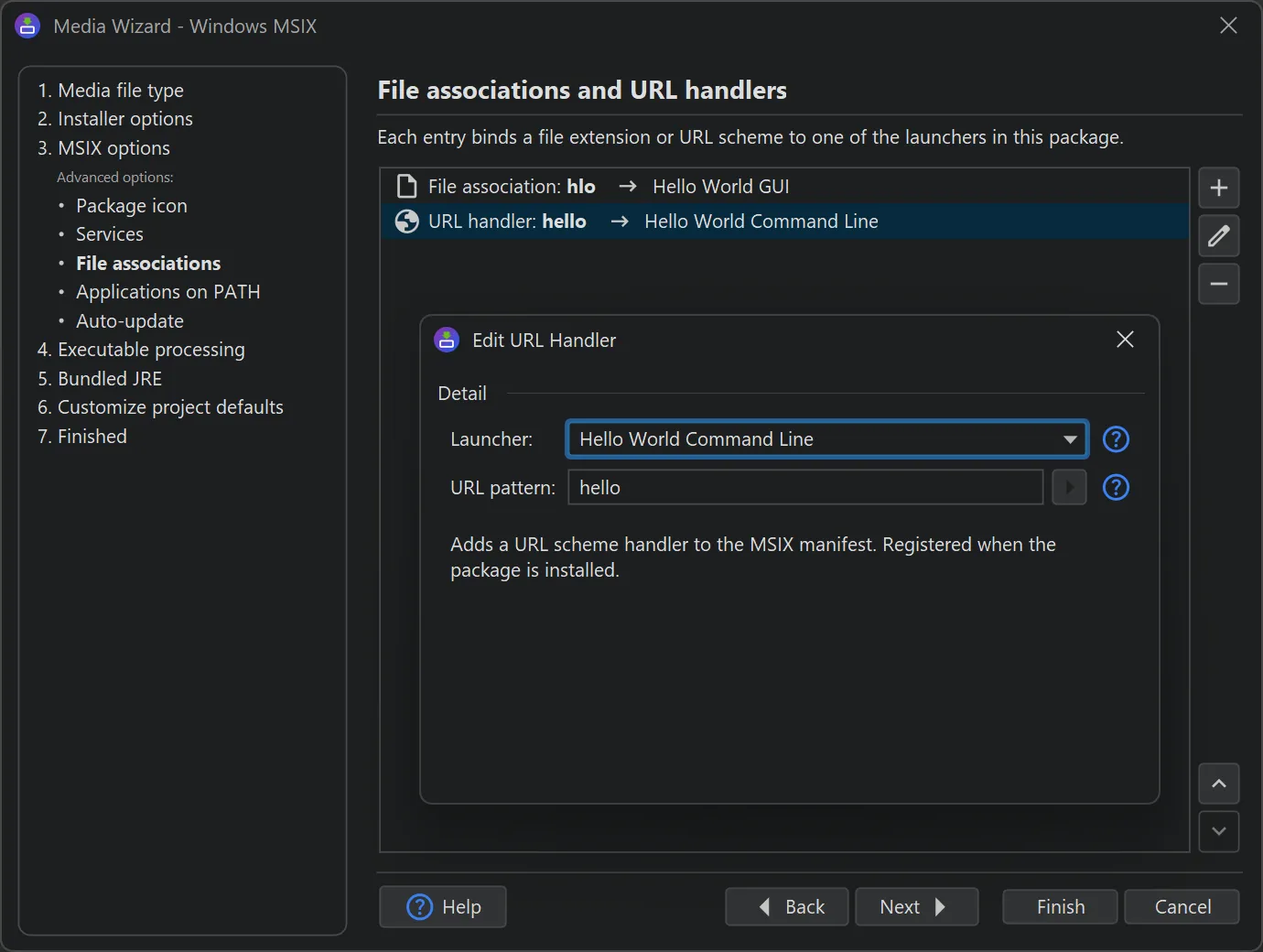
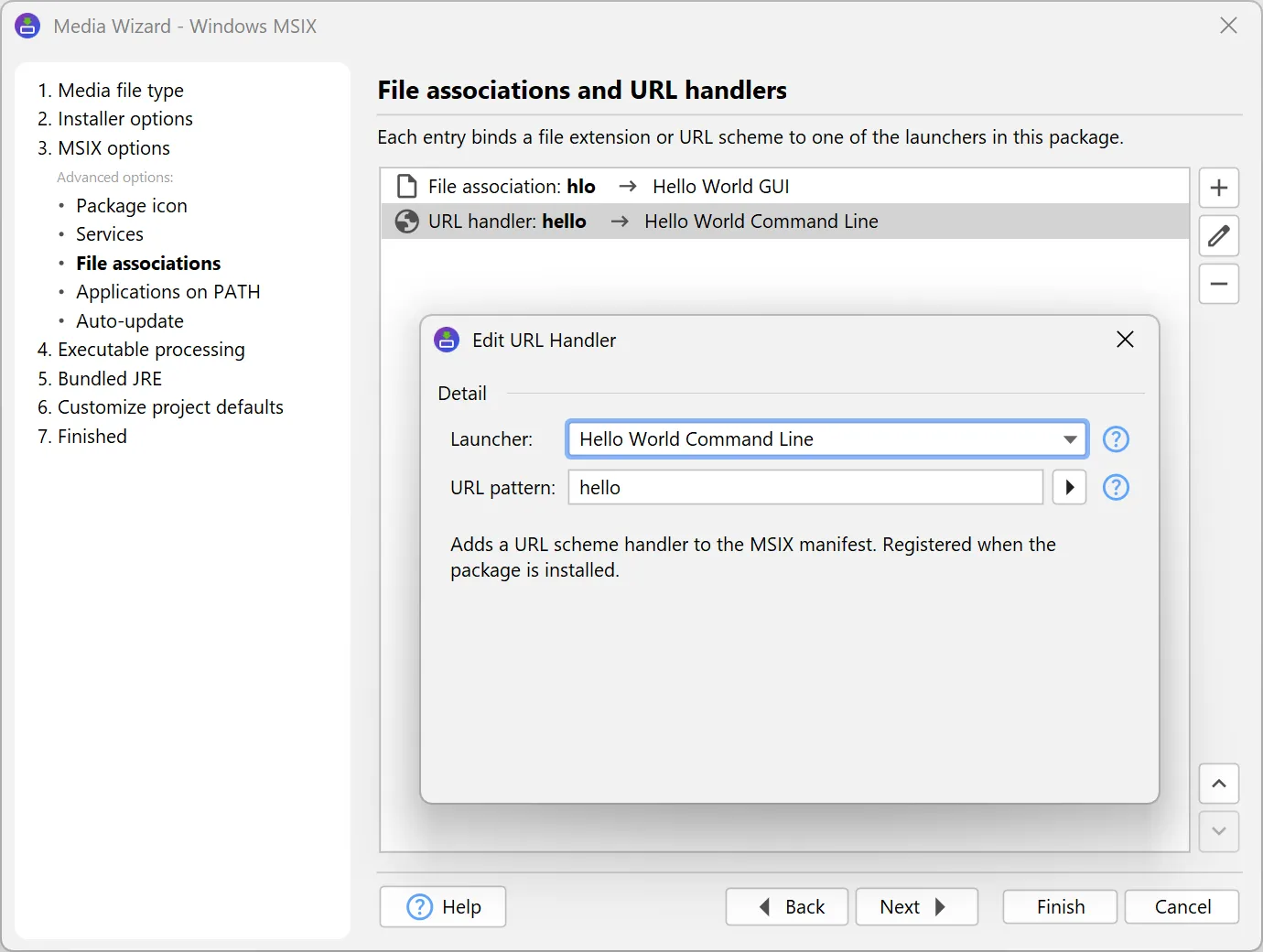
File associations bind one or more file extensions to a launcher, so that double-clicking such a file opens your application. For each association, a description, an optional MIME type, and a custom icon can be configured.

ScreenshotScreenshot

URL scheme handlers are declared in the same way, so that a custom scheme such as myapp:// is routed to the launcher. Both are set up on the "File associations and URL handlers" sub-step.

App URI handlers let a launcher handle ordinary https:// links for a specific host. When a matching link is opened, Windows can route it to your application instead of the browser. Because a site's links cannot be claimed without its consent, the host must publish the generated windows-app-web-link.json file under /.well-known/ that lists your package.

ScreenshotScreenshot

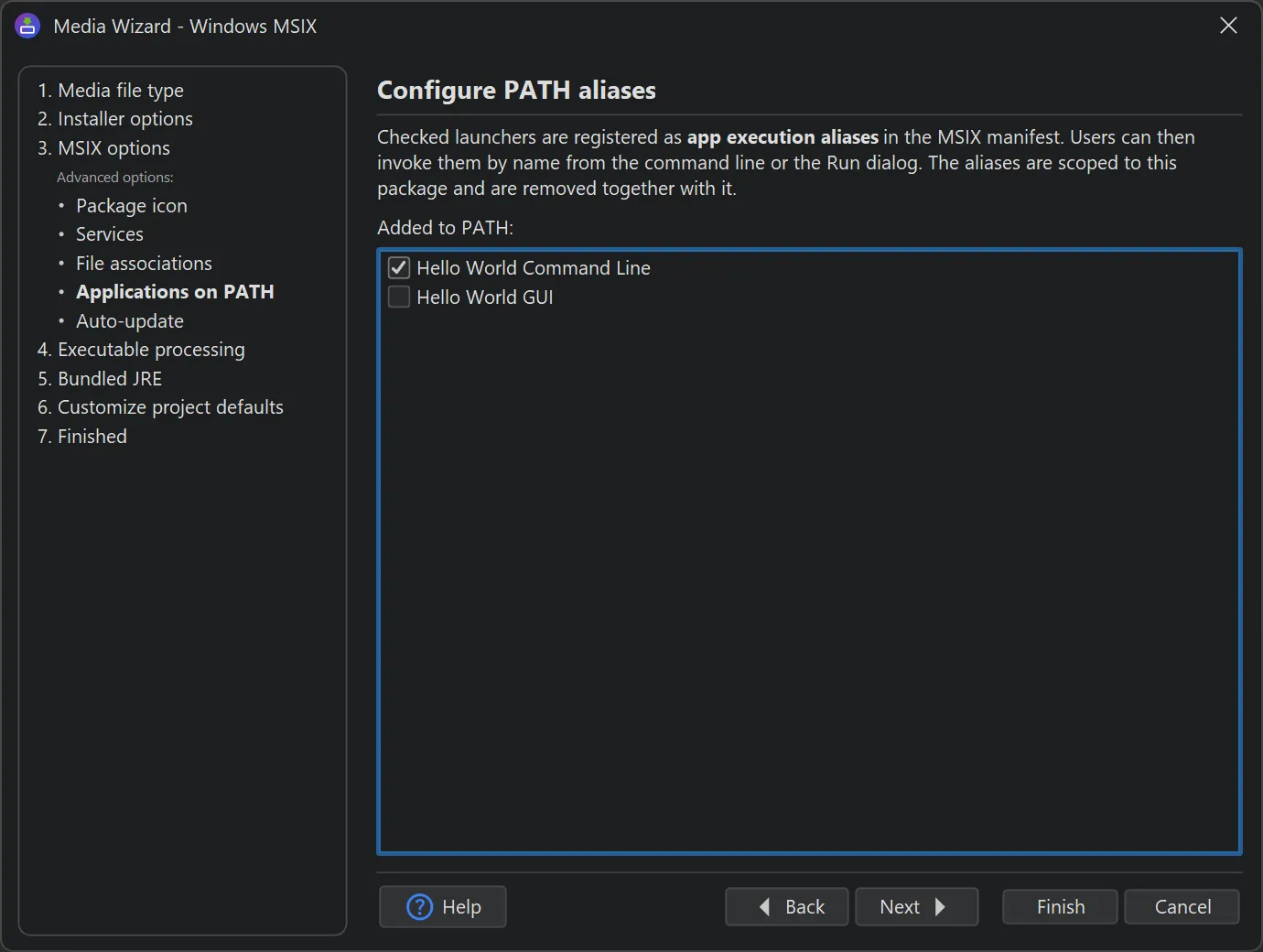
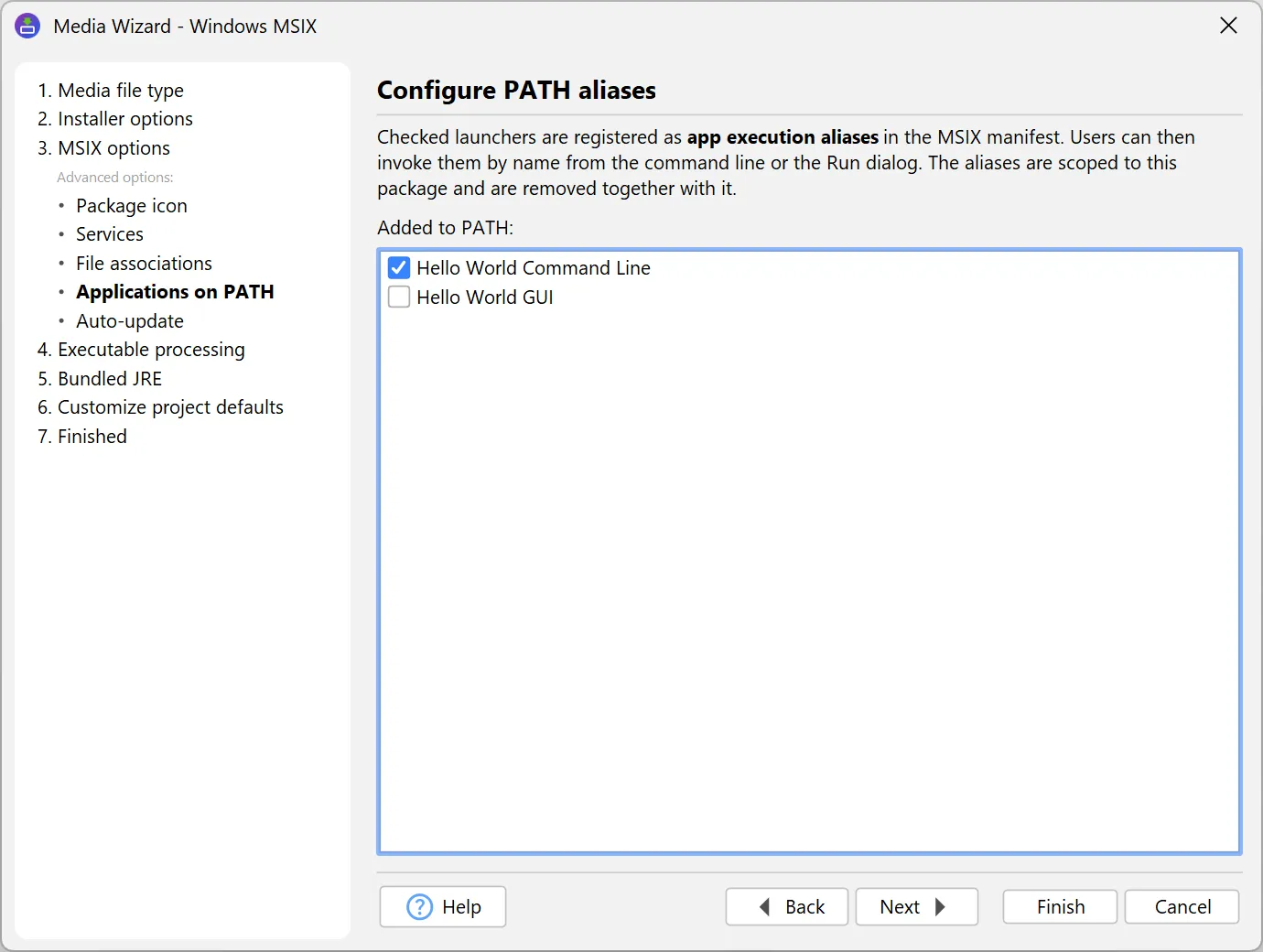
App execution aliases expose selected launchers under their executable name on the user's PATH, so that they can be invoked by name from a command prompt or the Run dialog. The aliases are scoped to the package and are removed together with it. They are selected on the "Applications on PATH" sub-step.

ScreenshotScreenshot

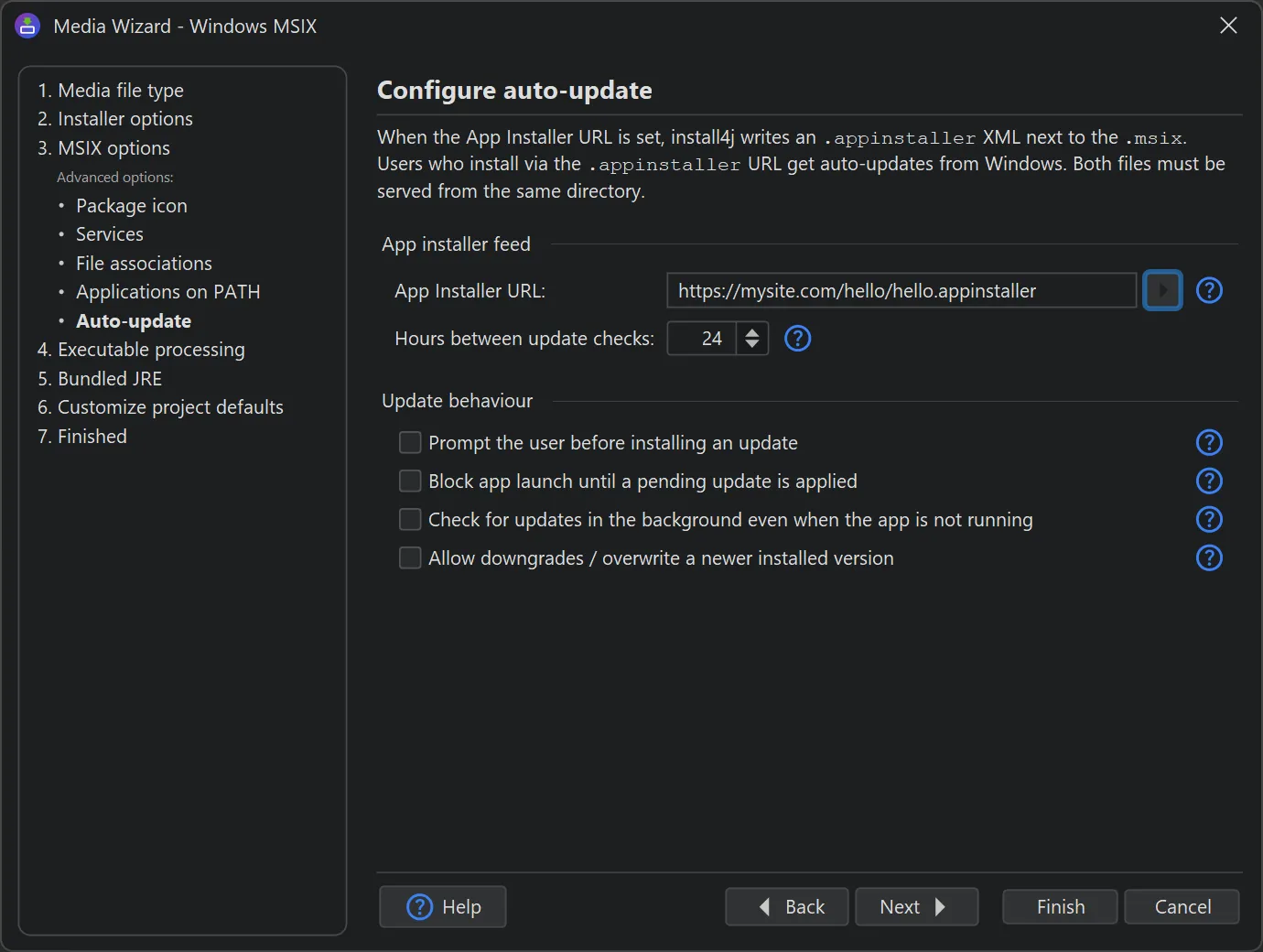
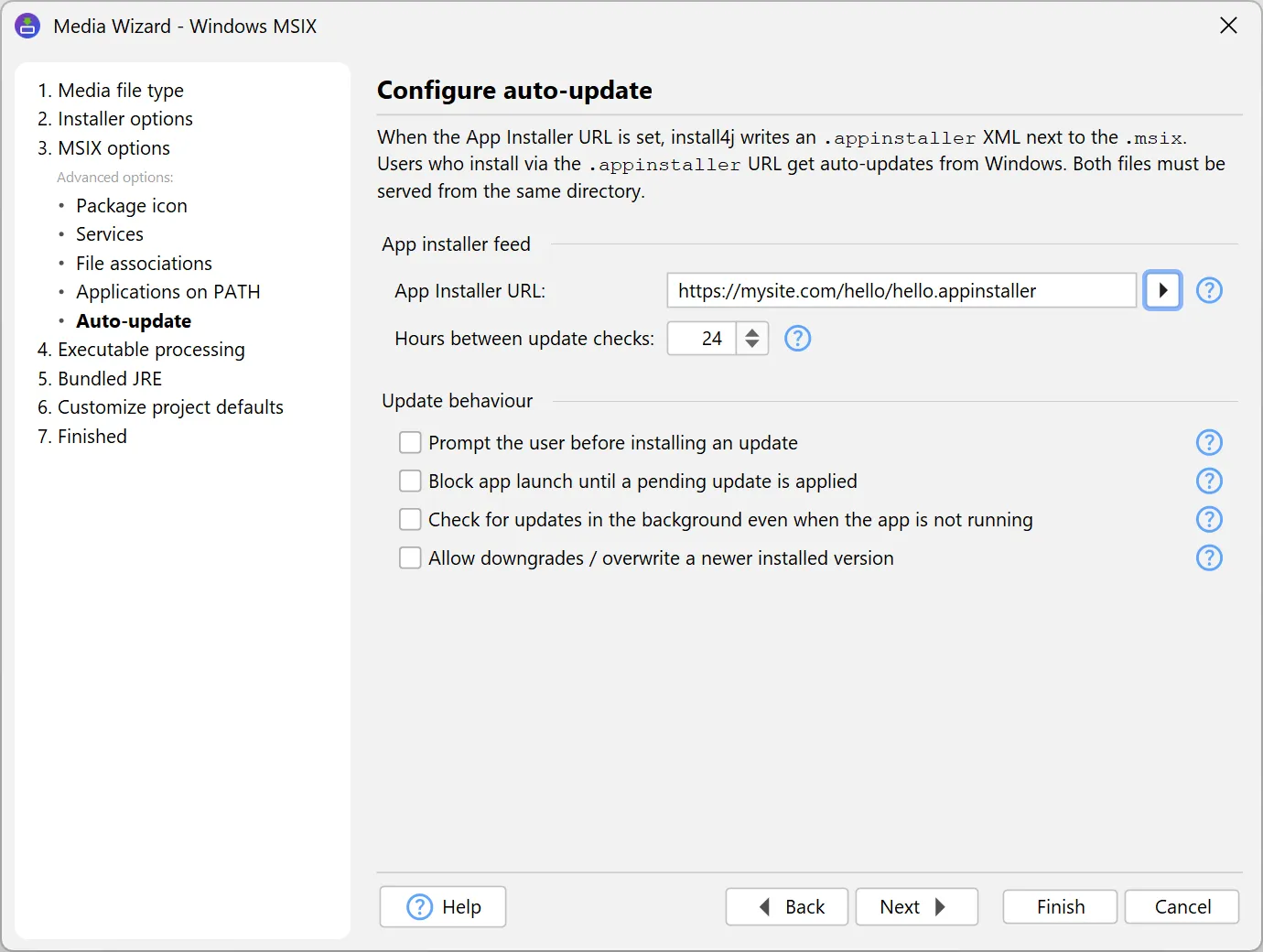
For auto-updates, MSIX packages rely on the App Installer mechanism built into Windows rather than on the install4j update architecture. The required .appinstaller file is generated by install4j, and the hosted URL is then checked periodically by Windows so that new package versions are installed in the background. The hosting URL and the update behavior, such as how often to check and whether to prompt the user, are configured on the "Auto-update" sub-step.

ScreenshotScreenshot

All languages configured for the project are declared in the manifest automatically.

Software development is quickly becoming agentic, with much of the day-to-day work now driven through AI coding assistants. install4j 13 brings installer authoring into that workflow. It ships with an AI agent skill that lets a coding assistant read, edit, and create install4j project files, so a change can be described in natural language and applied directly to the project. This lowers the barrier to building and maintaining an installer, and the project file becomes just another part of the codebase that the agent works on.

The skill is a self-contained knowledge package. It bundles the project file schema, a catalog of every available bean class (screens, actions, form components, screen and widget styles), runnable sample projects, the install4j API, and the complete documentation, all in an AI-friendly format together with instructions for common workflows. With it, the assistant can verify against accurate information and does not have to guess.

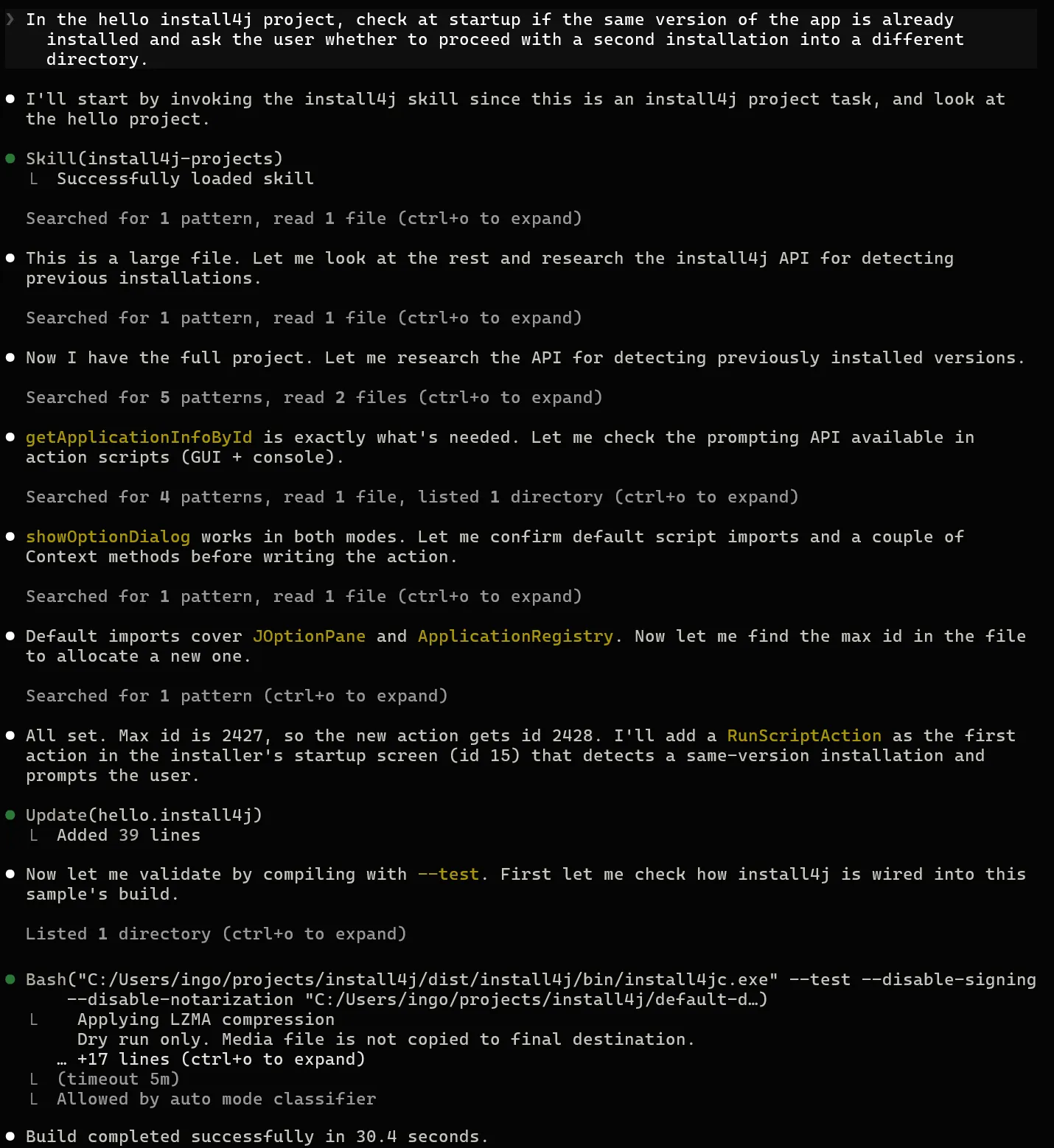
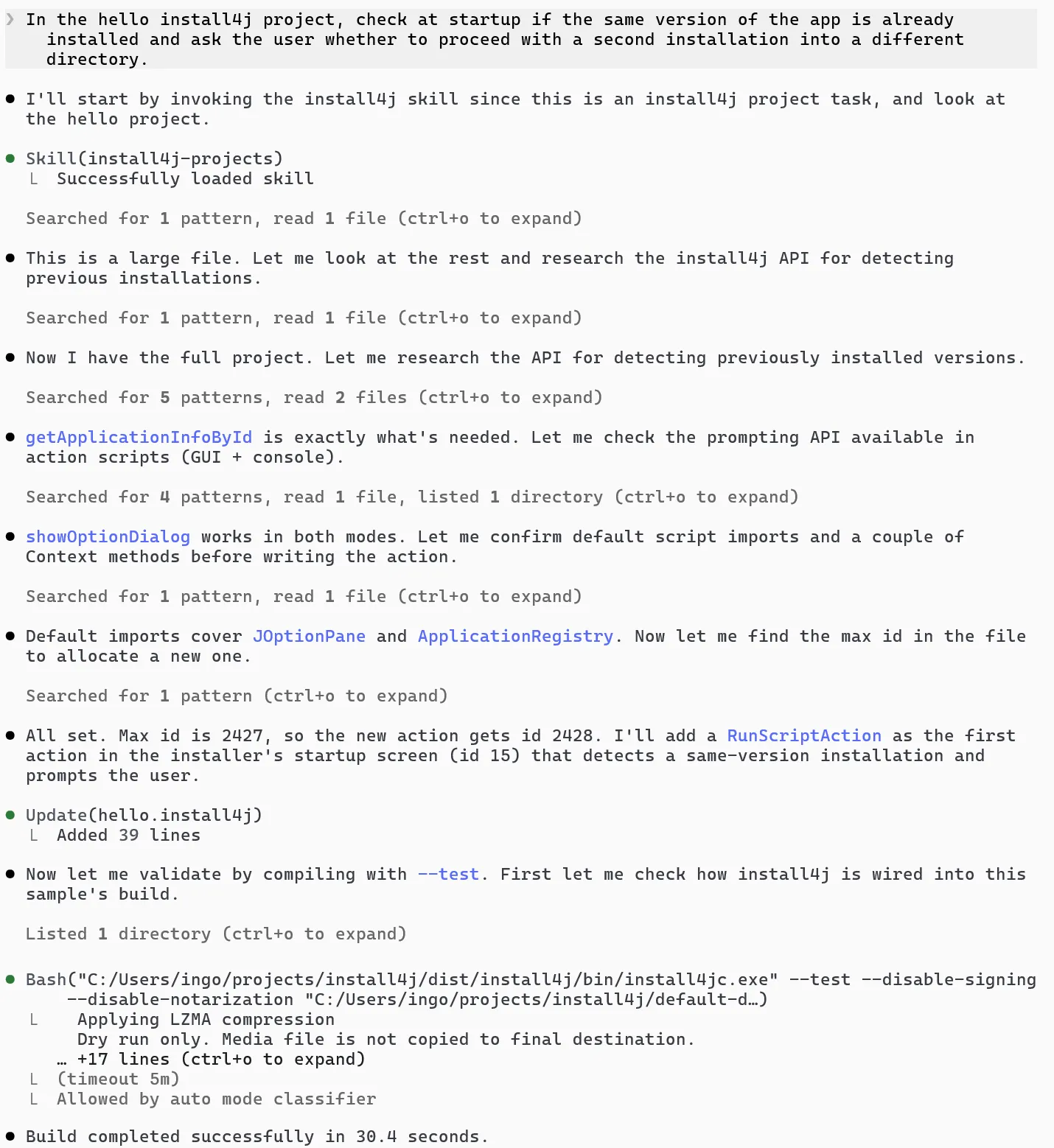
A compatible assistant loads the skill on its own whenever you give it a task related to install4j. For example, when it is asked to add a startup check to the hello sample that detects an already installed version and prompts before a second installation, the assistant locates the right registry API, inserts the new action into the project file, and confirms that the project still compiles.

ScreenshotScreenshot

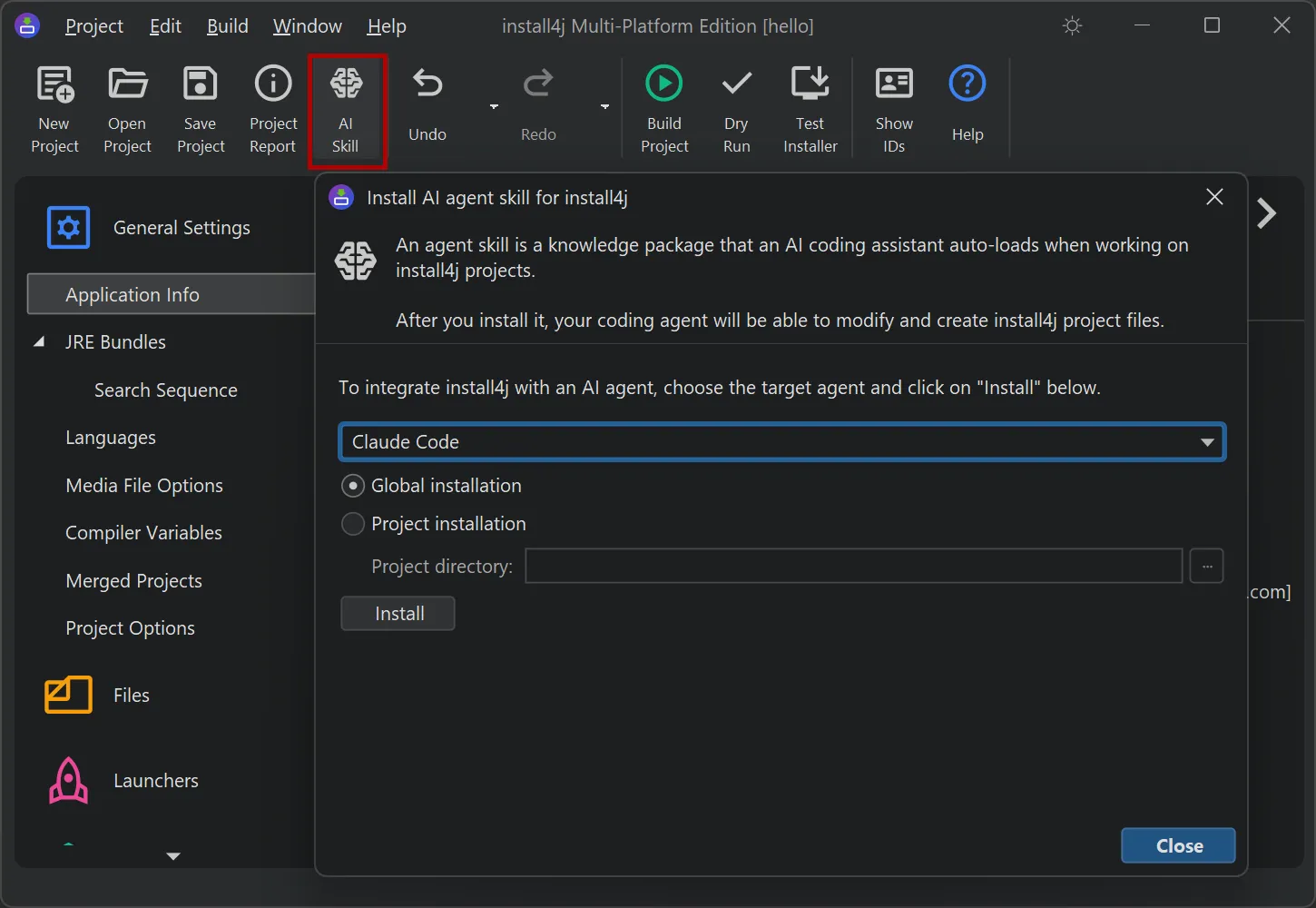
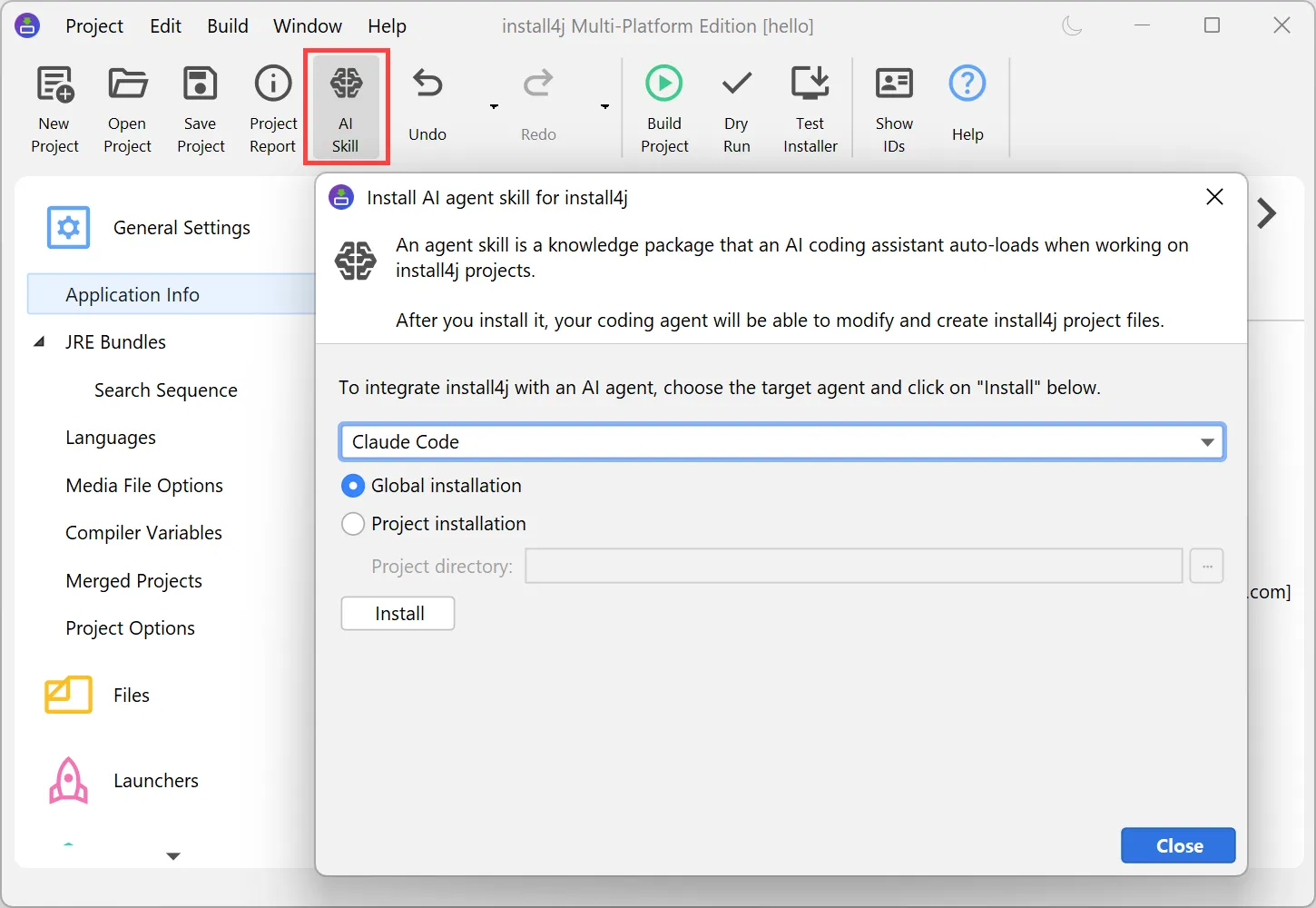
To install the skill, click the "Install AI Skill" button in the toolbar. From the dialog, it can be written into the skills directory of your AI agent. Supported agents include Claude Code, Claude Desktop, Cursor, Codex CLI, Gemini CLI, OpenCode, and Junie.

It can be installed globally, so it is available in every project on your machine, or per project, where it is only available when the agent runs from that project. The skill is generated from your exact install4j version, so its schema, bean catalog, and samples always match the compiler in your installation.

ScreenshotScreenshot

install4j 13 introduces an XML schema for install4j project files. The schema (install4j.xsd) is shipped in the resource directory of your install4j installation and documents every element, attribute, and enumeration value of the .install4j file format with inline descriptions. It is comprehensive, covering more than 230 elements, 450 attributes, and 150 enumeration values, with around 600 documentation entries describing them.

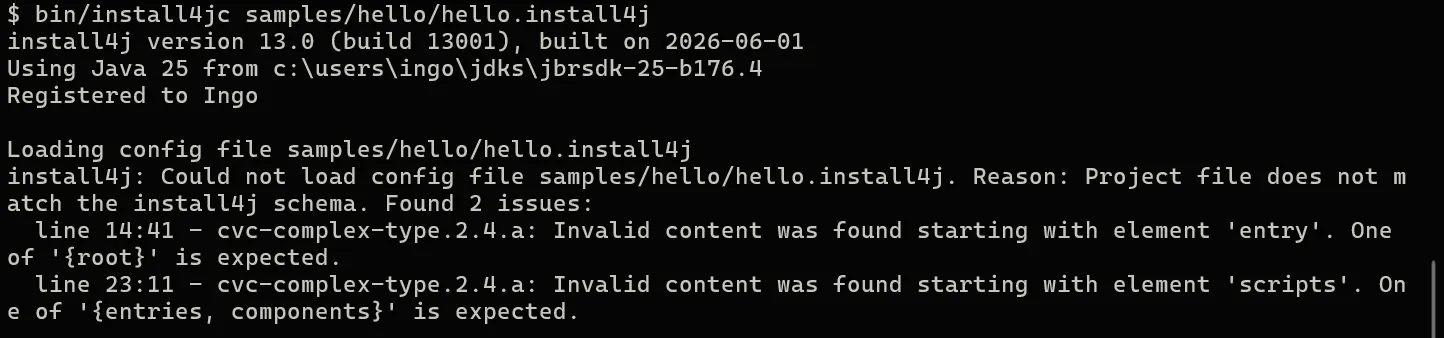
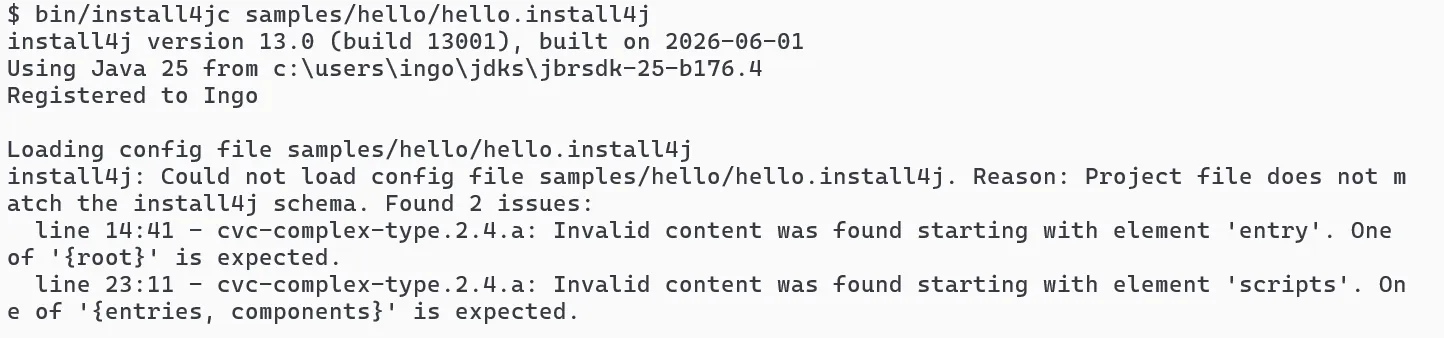
When you associate the schema with your .install4j files in an XML editor, you get auto-completion, inline documentation, and validation as you edit. In addition, the project file is now validated against the schema whenever you compile from the command line, so structural errors are caught early with precise messages.

ScreenshotScreenshot

A new install4j Test API lets you write automated, end-to-end tests that drive an installer UI in GUI mode from inside a test JVM. The API is framework-agnostic, so you can use it from JUnit, TestNG, Spock, or a plain main method.

A session is started with one of the session builders: InstallerSessionBuilder.forMediaFile(...) to test a generated installer, UninstallerSessionBuilder.forInstallation(...) to test an uninstaller, or InstallerApplicationSessionBuilder.forInstallation(...) for custom installer applications such as update downloaders. Builder options include a timeout, additional command line arguments, system properties, a working directory, a log file, and a debug mode that runs the installer in process for easy breakpoint debugging.

Within a session you wait for screens by id, navigate with the Next, Previous, Cancel, and Finish buttons, interact with strongly typed handles for form components and dialogs, and finally verify installer variables, the installation directory, the log, and the exit code:

InstallerSession session = InstallerSessionBuilder
    .forMediaFile(new File("media/myApp_windows-x64.exe"))
    .installationDirectory(targetDirectory)
    .start();

session.waitForScreenId("welcome").nextScreen();

// Accept the license, then fill in a custom form screen
session.currentScreen().checkBox("acceptCheckBox").setSelected(true);
session.currentScreen().nextScreen();
session.currentScreen().textField("port").setText("8443");
session.currentScreen().nextScreen();

// Modal dialogs can be handled when they appear
session.alert().clickYes();

session.currentScreen().finish();

// Verify the outcome after the installer has exited
int exitCode = session.awaitExit(Duration.ofMinutes(2));
assertEquals(0, exitCode);

For Kotlin users, extension functions are included to make the API more idiomatic. A useSession { } block starts the session and closes it automatically, helpers like onScreen and onAlert run a code block on a screen or dialog, and a session["name"] accessor reads installer variables:

InstallerSessionBuilder
    .forMediaFile(File("media/myApp_windows-x64.exe"))
    .useSession {
        onScreen("welcome") { nextScreen() }
        onCurrentScreen {
            checkBox("acceptCheckBox").setSelected(true)
            nextScreen()
        }
        onAlert { clickYes() }
        onCurrentScreen { finish() }
        awaitExit()
    }

The Test API is published to Maven Central as com.install4j:install4j-test and is also bundled as install4j-test.jar in the resource directory of your installation.

These GUI tests can even be run headless in CI. On Linux without a display, such as a GitHub Actions runner, the installer subprocess is automatically wrapped in xvfb-run together with a lightweight window manager, so the installer is rendered into a virtual framebuffer and the tests run without any physical screen. All that is required on the machine is xvfb-run and one of the supported window managers (metacity, mutter, openbox, fluxbox, or marco).

ScreenshotScreenshot

A rich terminal UI has been added for console mode. Console mode is how an install4j installer runs when there is no graphical display. Previous versions of install4j supported a plain console mode only.

When the installer runs with Java 25 or later in an ANSI-capable terminal, console mode now renders a modern, interactive UI:

  • Colored output so that success and error messages stand out.
    ScreenshotScreenshot
  • A live progress bar with a percentage, with status and detail rows that update in place instead of scrolling past. Long files paths are shortened in the middle so that the beginning and the end stay visible.
    ScreenshotScreenshot
  • A spinner for work whose duration is not known.
    ScreenshotScreenshot
  • Single-choice lists navigated with the arrow keys, used for option menus and for Yes/No and OK/Cancel confirmations.
    ScreenshotScreenshot
  • Multi-selection from a checkbox list.
    ScreenshotScreenshot
  • Text and masked password input, and file and directory prompts with tab completion.
    ScreenshotScreenshot
  • A built-in pager for long text such as license agreements, optionally requiring the user to scroll to the end.
    ScreenshotScreenshot

The rich renderer falls back to the plain console automatically when running on an older Java version or when there is no terminal with sufficient capabilities, for example when output is redirected to a file or piped to another process. The plain renderer can be forced by passing -J-Dinstall4j.plainConsole=true to the installer.

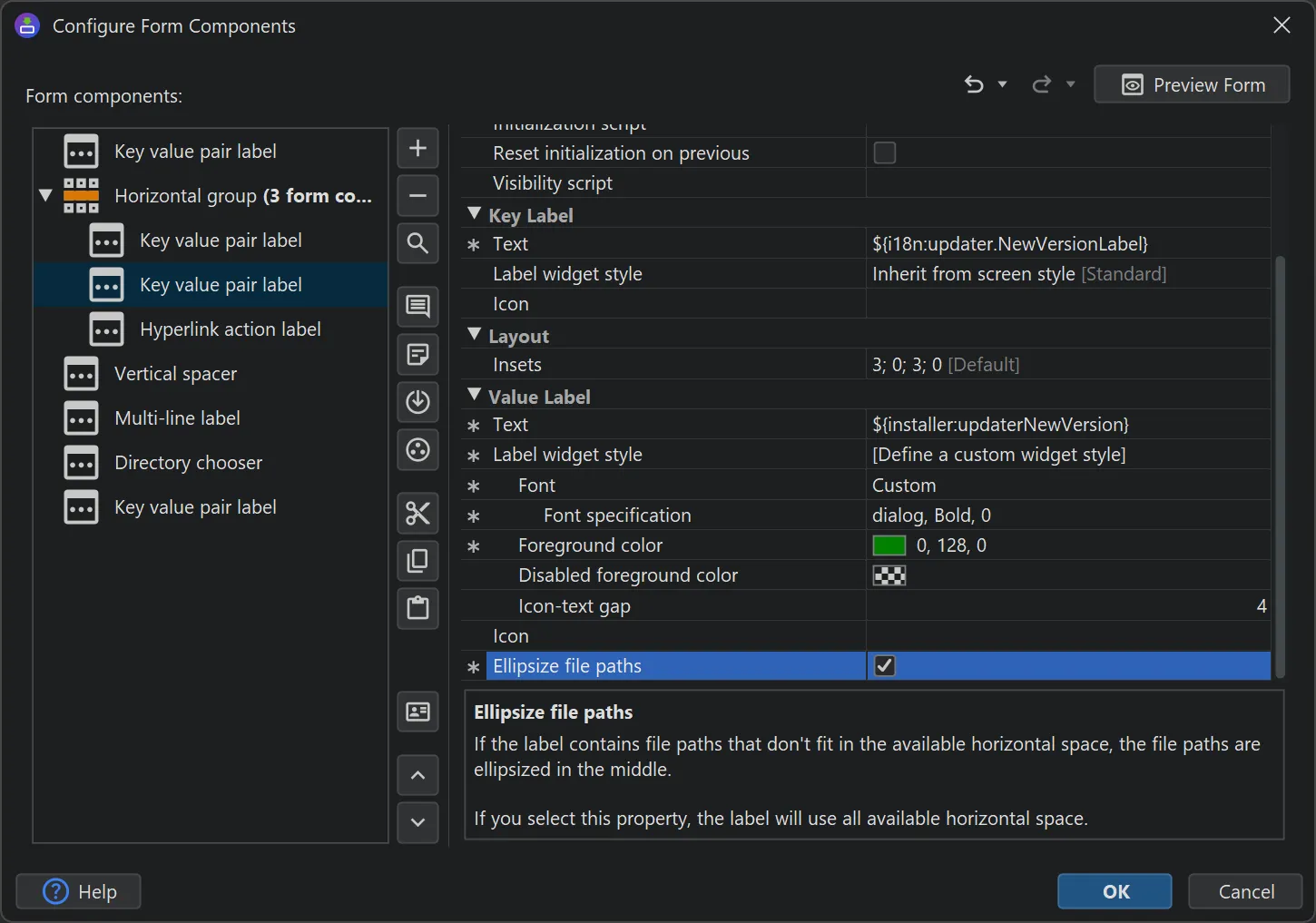
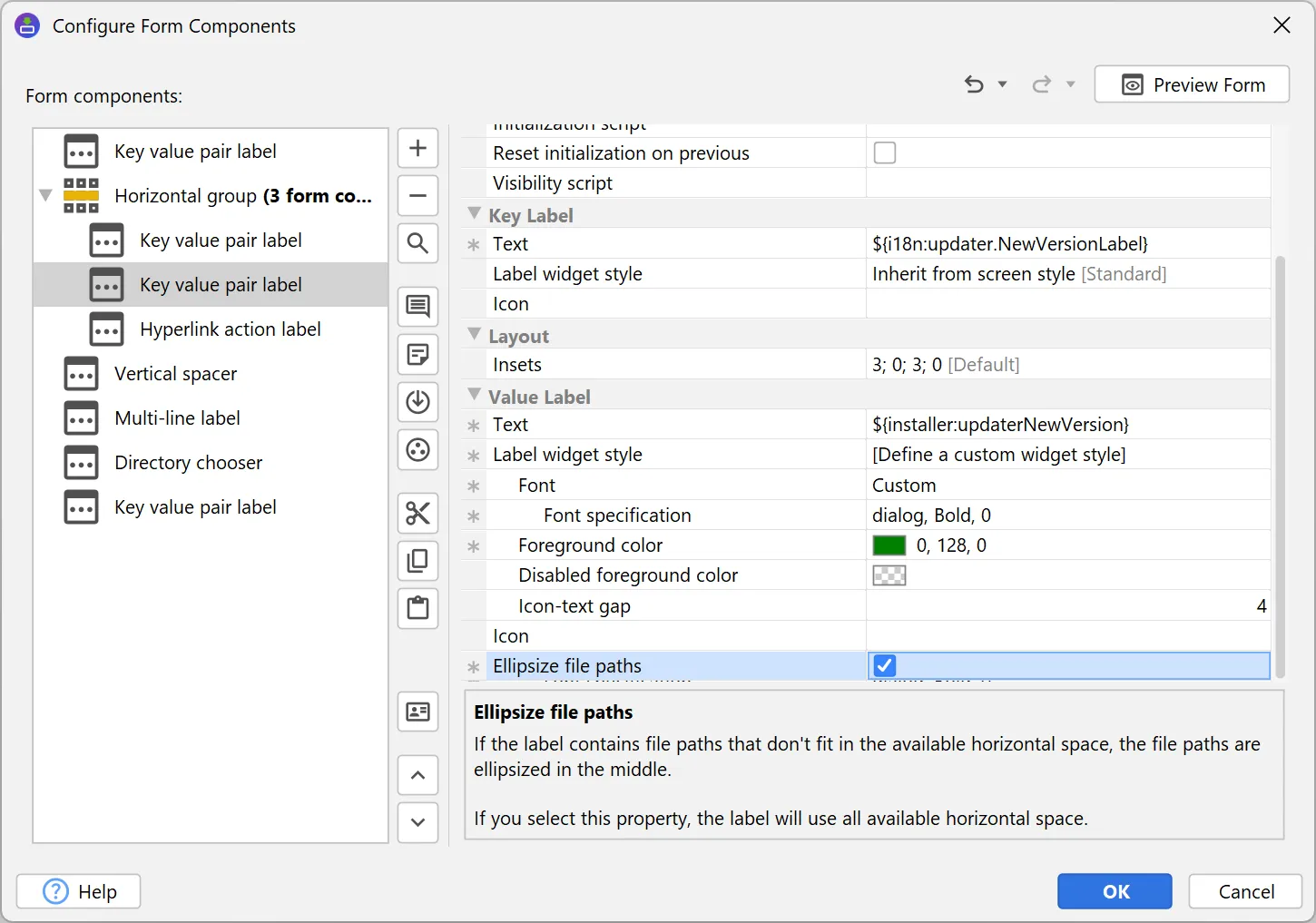
The "Label" and "Key-value pair" form components have a new "Ellipsize file paths" property. When the label contains a file path that does not fit the available horizontal space, inner path components are replaced with an ellipsis so that the beginning and the end of the path remain visible.

ScreenshotScreenshot

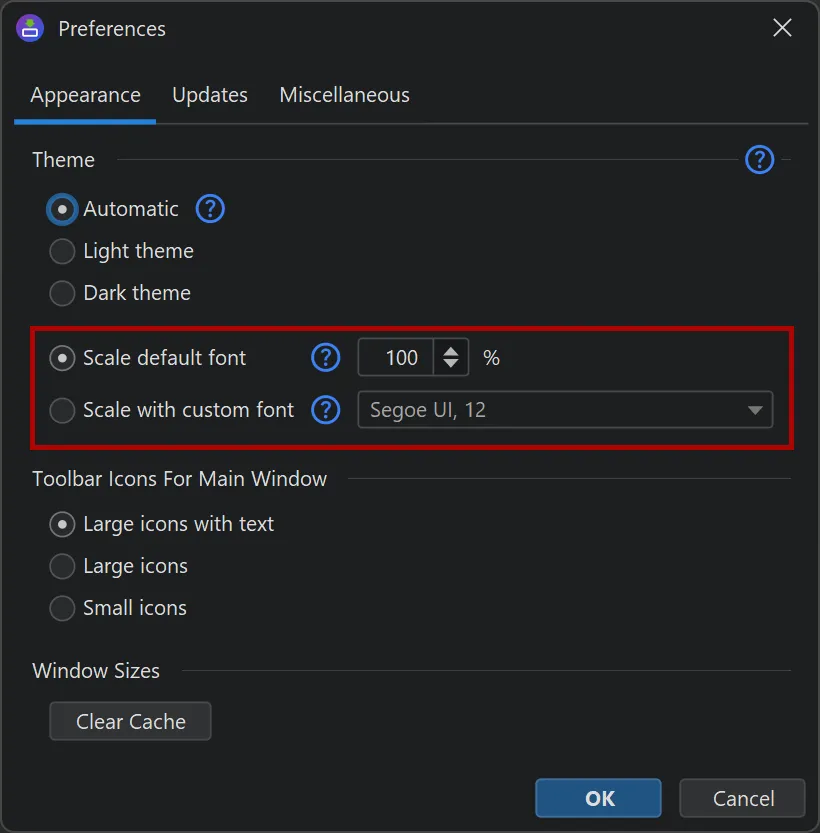
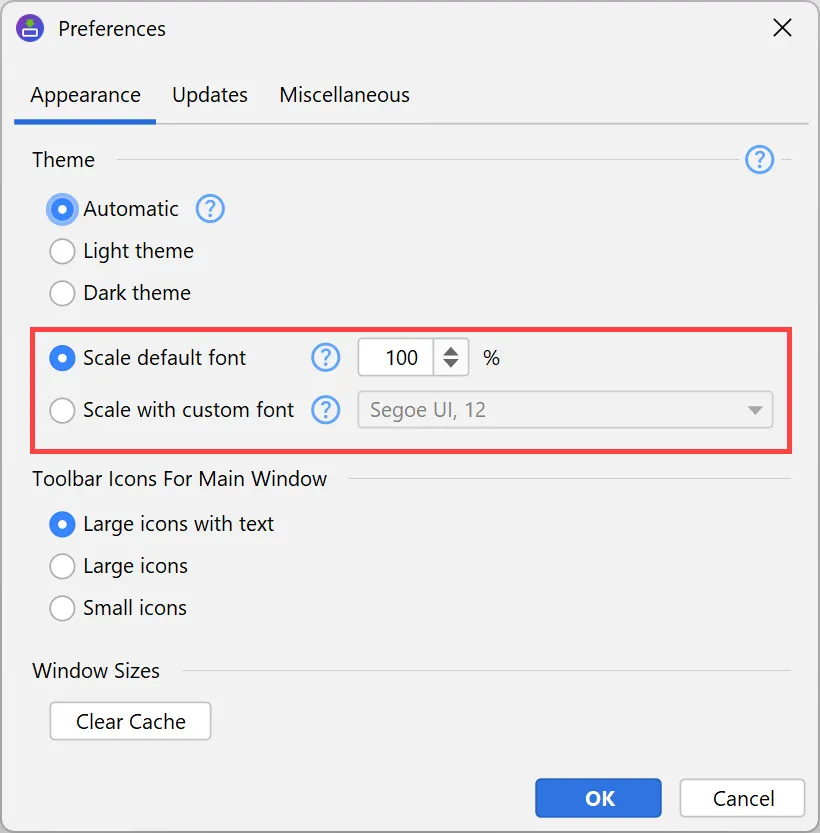
The install4j IDE is now fully scalable. In the general settings, you can either set a scale factor as a percentage, or set a custom UI font with an arbitrary size, and the UI will be scaled accordingly.

ScreenshotScreenshot

This capability now allows the install4j IDE to run on Linux with all OpenJDK variants and for all HiDPI resolutions. Previously, only the JetBrains runtime was supported on Linux with HiDPI resolutions.

A new user home launcher variable has been added. Like the other ${launcher:...} variables, it is expanded by the launcher itself when it starts (now also in .vmoptions files on Linux) and resolves to the home directory of the current user.

This is useful, for example, to point VM parameters or arguments at a user-specific configuration directory.

Support for the new main methods from JEP 512 has been added. JEP 512 ("Compact Source Files and Instance Main Methods"), finalized in Java 25, allows a main method to be declared as an instance method and to omit the String[] parameter.

A launcher can now point at a class whose entry point is, for example, an instance void main() method, in addition to the classic public static void main(String[] args).

install4j 12.02025-10-31change log

For a discussion of breaking changes when migrating from install4j 11, please see this blog post.

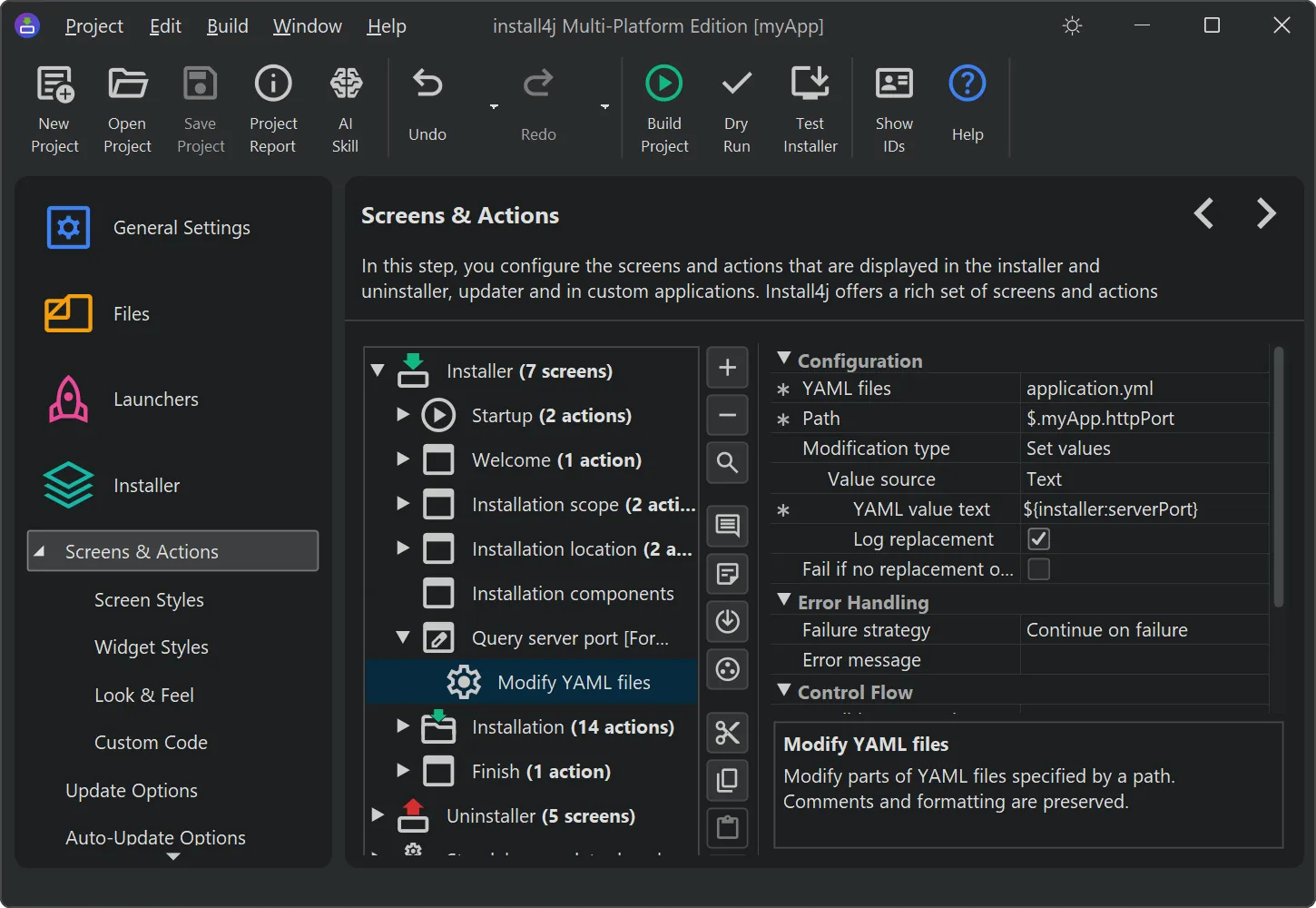
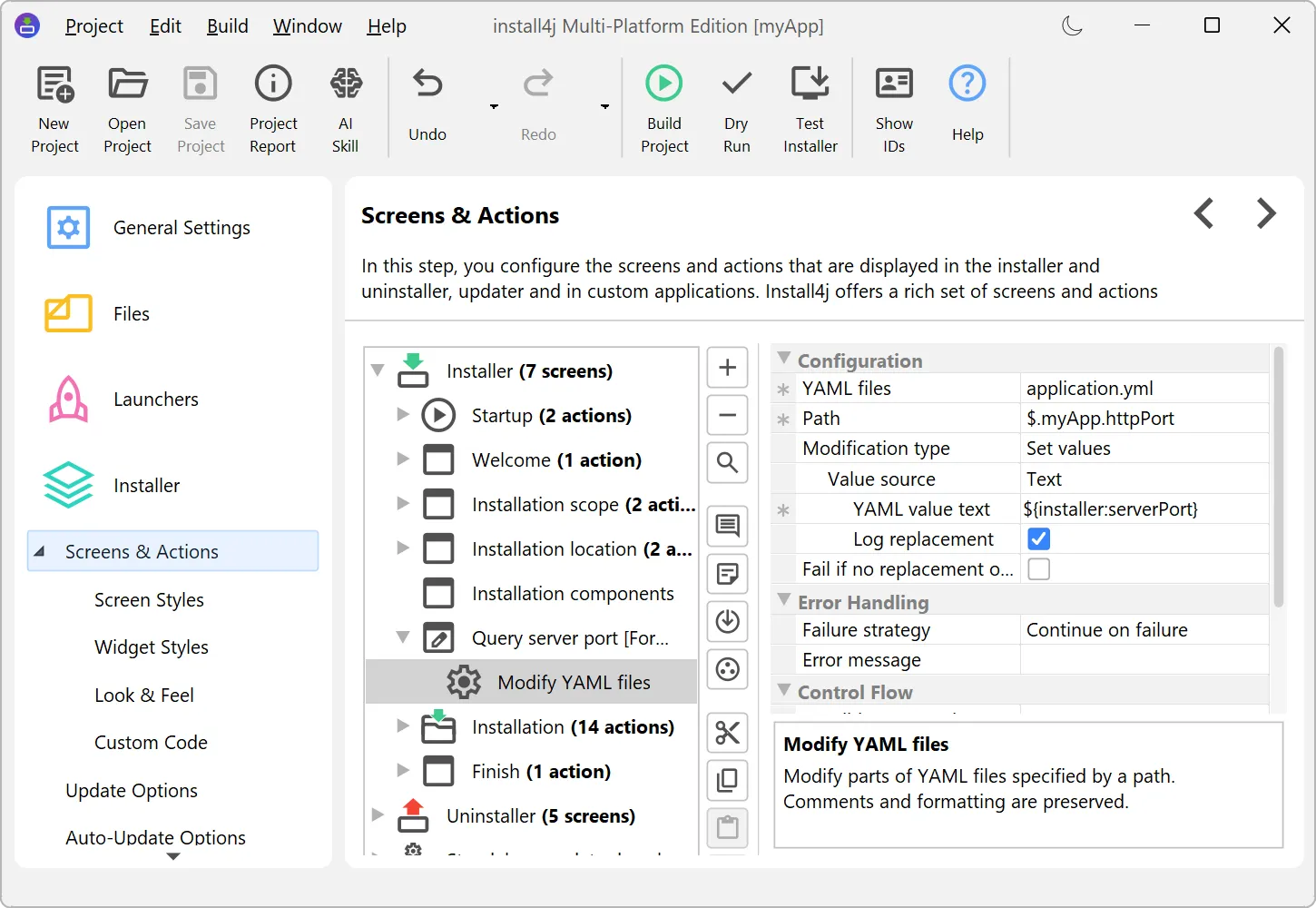
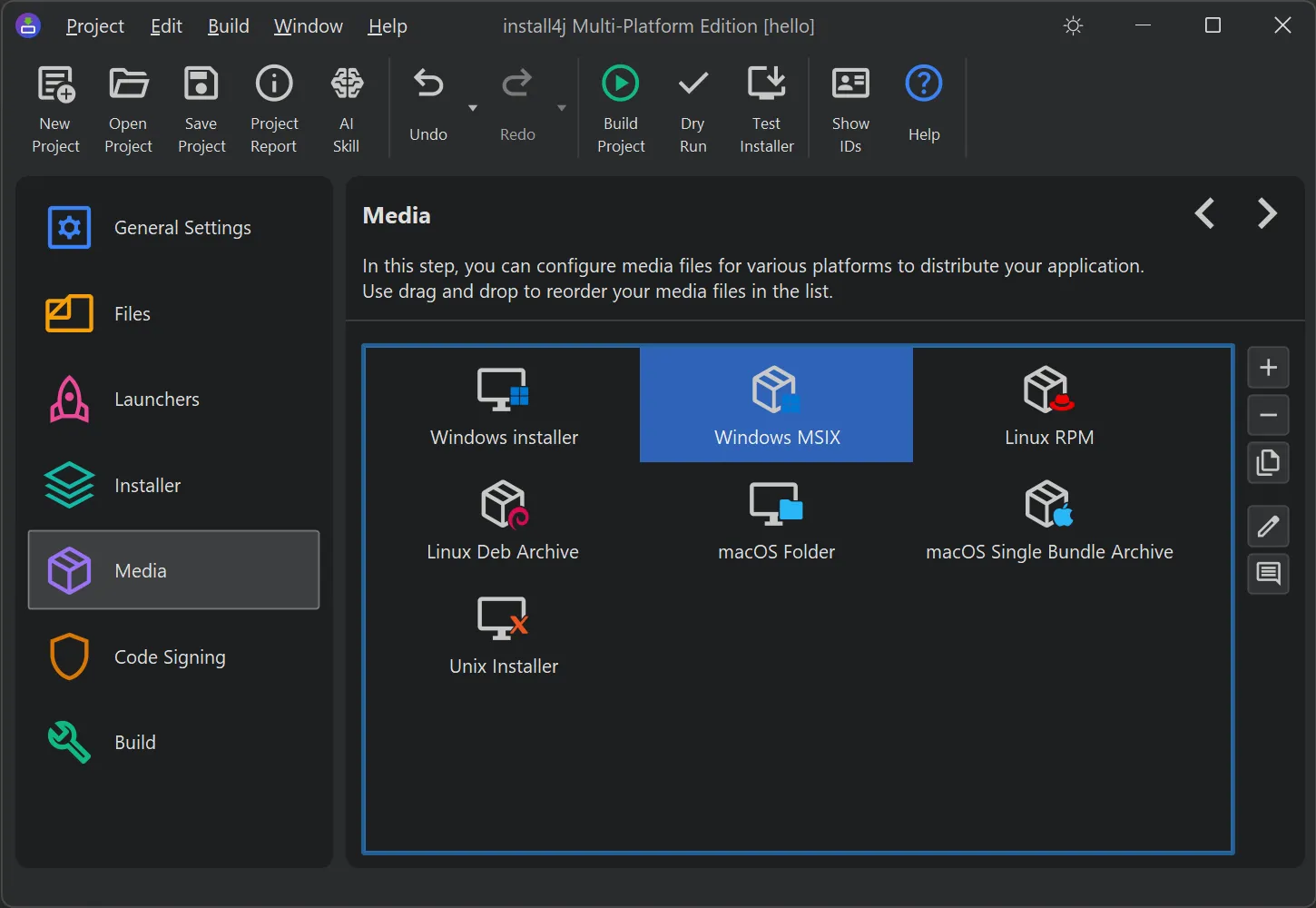
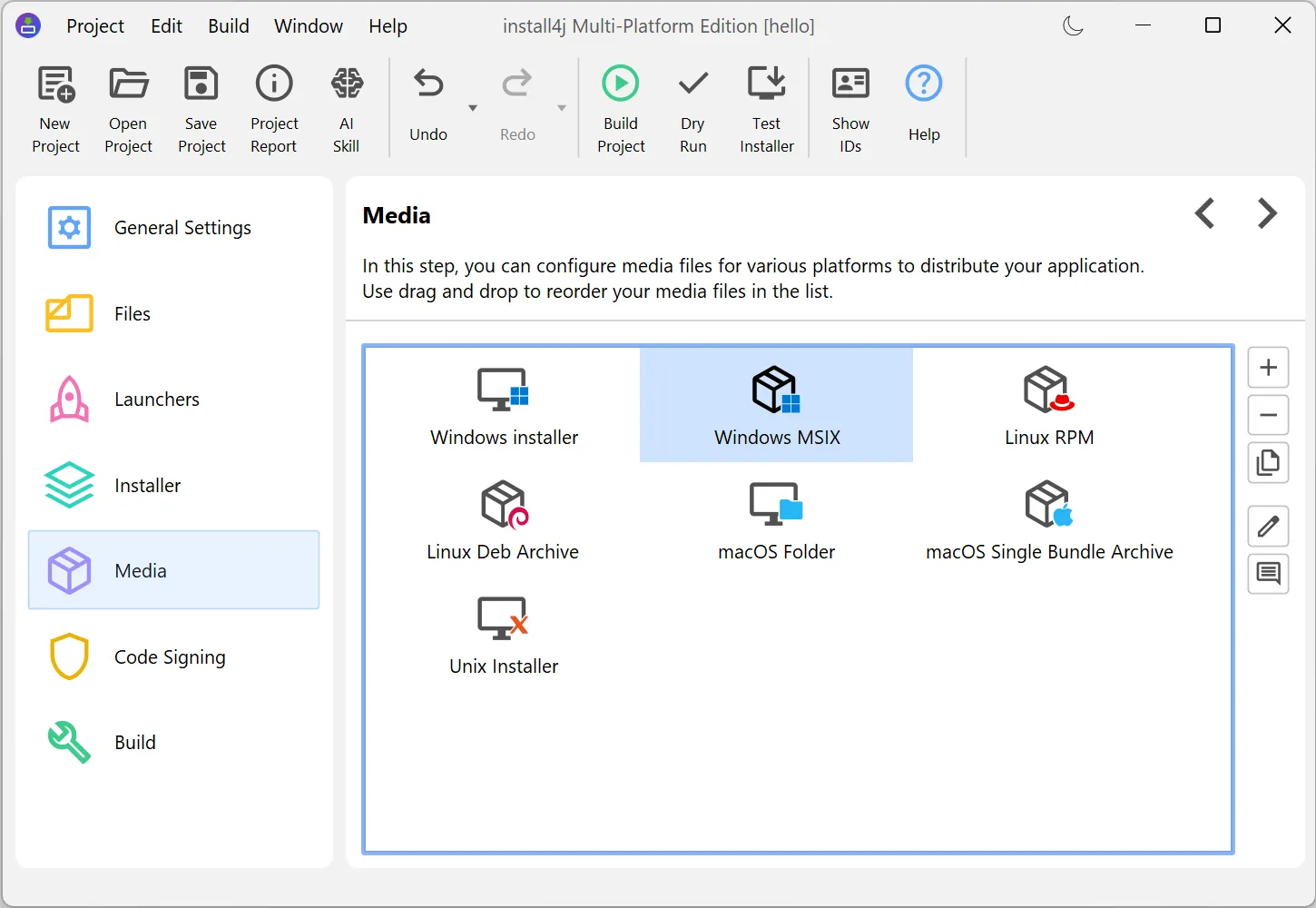
The IDE has a new UI with a refreshed visual appearance and new icons. We hope you like it! We have light and dark themes. You can see screenshots of them by toggling the dark mode switch at the top of this page.

ScreenshotScreenshot

Also, artwork and icons in the generated installers have been updated to a more modern look. All images and icons in the generated installers remain replaceable, but the default icons and images that are shown by the built-in screen styles are updated automatically to the new style.

ScreenshotScreenshot

DMGs on macOS can now be styled right in the install4j IDE. You can apply backgrounds, position and size of the app icon manually and add symbolic links like the /Applications directory at arbitrary positions. Also, the bounds of the Finder window can be set.

Previously, you would get plain Finder windows with just the app icon unless you followed a cumbersome procedure on macOS to produce .DSStore files and add them as top-level files to the DMG. Because the file format has now been reverse-engineered, install4j can generate these files in a cross-platform way.

ScreenshotScreenshot

A default styling is applied with a background image and a drop target for the /Applications directory in the case of single-bundle archives. You can also choose not to apply any styling, which is the default when migrating install4j projects from previous versions.

Additional top-level files for the DMG can be specified in a sub-step. You can optionally set icon coordinates to arrange items on the Finder window background.

ScreenshotScreenshot

Widget styles have been added to change fonts, colors, and other aspects of all widgets that are shown in installer applications.

Widget styles are defined on the "Installer->Screens & Actions->Widget Styles" step. You can add multiple widget styles for each project. Each widget style has default colors and font settings that can be overridden for specific widget types.

ScreenshotScreenshot

The widgets that are most frequently styled in different ways are buttons. Beyond custom font and custom background and foreground colors, install4j offers different types of buttons, such as borderless buttons, buttons with rounded rectangle borders, or toolbar-style buttons. Colors when hovering over or pressing a button and the colors for the focused state can be configured separately if required.

ScreenshotScreenshot

Besides buttons, the list of stylable widget types includes

  • Drop-down lists and combo boxes
  • Hyperlinks
  • Labels
  • Lists and trees
  • Progress bars
  • Sliders
  • Text components
  • Toggle buttons

Also, the background color for frames and dialogs can be set in the widget style.

To apply a widget style other than the default style, you can assign it to a screen style. Screen styles in turn are applied to installer applications, screen groups, and single screens, and widget styles are cascaded along with them.

ScreenshotScreenshot

Alternatively, widget styles can be applied on the form component level. Form components can have multiple widget styles for their contained widgets. For example, most form components have an optional leading label that has a separate widget style property.

ScreenshotScreenshot

For one-off style changes, a custom inline style can be configured directly in the form component. To do that, choose the "Define a custom widget style" option and all the relevant style properties will appear as child properties.

ScreenshotScreenshot

To support different colors in light mode and dark mode, all color properties support a notation with separate colors for both modes. The property popup also allows you to configure both colors.

ScreenshotScreenshot

You can preview widget styles directly in the install4j IDE. The preview window also takes screen styles into account.

ScreenshotScreenshot

The binary architecture on macOS has been reworked. Previous versions of install4j used shell scripts for daemons and launchers and executed the JVM as a separate process for installer applications. Now, all launchers are binary launchers that start the JVM in-process. This has the following benefits:

  • Command line launchers and services now support entitlements, and do not start a separate "java" process anymore.
  • For macOS installer applications, the JVM is now started in-process, fixing problems with incorrect titles and icons in the Dock.
  • For single-bundle archive media files on macOS, all launchers are now nested as separate application bundles in the main application bundle. While they are not directly visible to the user, you can now start them as regular applications, for example with /bin/open /path/to/YourApp.app.
  • For single-bundle archive media files on macOS, out-of-process installer applications are now nested application bundles and properly show in the Dock. Previously, update downloaders would add invalid entries to the "Recent apps" in the Dock that just showed a Java executable.

For example, check out the nested bin directory of the install4j app bundle itself. On macOS you can bring this up with the "Tools" toolbar button. The Finder window shows the command line executables as well as the nested update downloader, which is an installer application. In previous versions of install4j, the update downloader would not have been generated for a single-bundle archive.

ScreenshotScreenshot

The way installers set their installation directory has been reworked, adding substantial new functionality and greatly extending flexibility.

Previously, the way that installers determined whether to perform a user-specific or a global installation was a built-in decision, with only limited opportunities for customization via the "Request privileges" action.

Starting with install4j 12, this process has been made explicit and completely transparent. The core of this functionality is the new "Set installation directory" action.

ScreenshotScreenshot

The decision whether to set a user-specific or global installation location is determined by the "Installation scope property". Apart from the fixed options for global and user-specific installations, the outcome can depend on whether full admin rights are available, whether the installation directory for all users is writable, or whether the sys.installForAllUsers installer variable is set to true.

The action can also search for previous installations. This is based on the installation scope by default, but configurable to always include user-specific or global installations.

ScreenshotScreenshot

The "Set installation directory" action itself sets the boolean sys.installForAllUsers installer variable so that subsequent actions and screens can be wired together accordingly. For example, you could start with a "Set installation directory" action in the "Startup" node of the installer, followed by a "Request privileges" action with a condition expression of context.getBooleanVariable("sys.installForAllUsers").

Another component that is coupled to the sys.installForAllUsers installer variable is the new "Installation scope chooser" form component. It is part of the new "Installation scope" screen and provides a standard way to ask users whether to perform a user-specific or a global installation.

ScreenshotScreenshot

The "Installation scope chooser" form component consists of two radio buttons, one for each option, and is bound to the sys.installForAllUsers installer variable.

ScreenshotScreenshot

The "Installation scope" screen combines these radio buttons with default wording and two associated actions: A "Request privileges" action that is executed conditionally if the sys.installForAllUsers installer variable is set to true and a "Set installation directory" action with an installation scope of "According to the sys.installForAllUsers variable".

With these new building blocks you can implement different and more complex scenarios for determining the installation directory.

Code signing is now a separate section in the install4j IDE with different steps for Windows and macOS.

In the Windows code signing step, it is now possible to specify patterns for additional binaries that should be signed by install4j. Previously, only binaries generated by install4j would be signed.

ScreenshotScreenshot

When using PKCS #11, usually both certificate and private key are contained in the keystore. In install4j 12, matching of private keys and certificates has been improved considerably, leading to fewer code signing errors. In addition, the PKCS #11 session is now kept alive to speed up code signing.

In incomplete or non-standard setups, code signing can fail when the compiler cannot find the certificate or the full certificate chain. To handle these cases, install4j now offers an optional separate PKCS #11 certificate file entry, both for Windows and macOS code signing.

ScreenshotScreenshot

By default, install4j tries to use the certificate with the maximum validity if you do not select a specific certificate from the keystore. With the new mode, where a separate certificate file is specified, only the private key is loaded from the keystore and install4j tries to find a private key that matches the certificate. You can also select a specific private key by label or id manually.

ScreenshotScreenshot

Finally, the environment variable DYLD_LIBRARY_PATH can now be set on macOS for the install4j command line compiler to load PKCS #11 libraries.

install4j 12 adds support for the Apple Service Management framework.

In single-bundle archives, adding a service that runs for all users or a startup executable that is executed at login could previously be done with the "Install a service" and the "Add a startup executable" actions. However, when the user deleted the app bundle, these registrations would not be deleted along with the app bundle which would cause problems.

The Apple Service Management framework allows you to manage launch agents and launch daemons in such a way that they are tied to the lifecycle of the single-bundle archive. However, this requires some extra work.

Single-bundle archives now have an additional "Agents and Daemons" step in the media wizard, where you can statically define "launch agents" and "launch daemons".

ScreenshotScreenshot

In the terminology of install4j, a "launch agent" corresponds to a "startup executable" and a "launch daemon" corresponds to a "service". We've named them with Apple's terminology because you need to read the Apple documentation to understand what is happening in the background to use this feature.

Both launch agents and daemons need an identifier. Launch agents additionally support arguments. Because they can show a UI by default, you can choose to hide them from the Dock when they only perform background operations.

ScreenshotScreenshot

install4j will generate the required files in Contents/Library/LaunchAgents and Contents/Library/LaunchDaemons, but they will not automatically be registered. You need to add logic to your app to alert the user, and then call the com.install4j.api.macos.MacServiceManagement API to register them. This will trigger a confirmation from the OS.

The registration is a simple static method call that uses the identifier that you configured for the launch daemon or the launch agent:

MacServiceManagement.registerLaunchAgent("com.mycorp.sync.plist");
MacServiceManagement.registerLaunchDaemon("com.mycorp.protocolserver.plist");

In addition, MacServiceManagement contains methods for checking the status and unregistering launch agents and launch daemons, opening System Settings in the "Login Items" section, and registering the main bundle itself as a login item.

The "Add a Startup Executable" action has been improved in several ways:

  • The action now also works on Linux, using systemd user services.
  • On macOS, the action now uses LaunchAgents instead of LoginItems. This provides a better user experience without questions due to automation security restrictions.
  • The action now supports setting arguments for the executable.
  • The action now supports starting the launcher immediately.
ScreenshotScreenshot

Support for streamlining installations has been added. This builds on the feature in previous versions where screens could be skipped for update installations if the user confirmed an update installation in the "Update alert" form component, typically on the "Welcome" screen.

install4j 12 extends the "Update alert" form component into a "Streamlined installation chooser" form component with two modes for its "Streamlined installation strategy" property.

ScreenshotScreenshot

By default, streamlining offers either a "default" installation or a "customized" installation. The result of the user selection is saved to the boolean installer variable sys.streamlinedInstallation. That variable can be used to conditionally execute other screens and actions. By default, several screens in install4j have such condition expressions when you add them.

ScreenshotScreenshot

Alternatively, you can choose to only alert the user for update installations and offer streamlining only in that case. This corresponds to the behavior in previous versions of install4j.

ScreenshotScreenshot

Support for renaming for RPM and DEB media files has been added.

Whenever you rename the "Short name" on the "General Settings->Application Info" step, your package name will change, and upgrades will no longer work, leaving old versions installed.

With the new "Replaced packages" option in the "Package options" step of the media wizards for RPM and DEB media files, you can specify a comma-separated list of package names that should be removed when the package is installed.

ScreenshotScreenshot

A JDK provider for IBM Semeru was added. Semeru runtimes are IBM-branded OpenJ9 JDKs. You can now select these JDKs for bundling on the "General Settings->JRE Bundles" step.

ScreenshotScreenshot

Support for the new Apple .icon bundles was added.

macOS 26 ships with a new "Icon Composer" app allowing you to design icons with different transparency layers that work well with the new icon styles in that release. While install4j cannot use the output of that app directly, it can use the .car resource archive that is created when the icon is compiled for an Xcode project.

ScreenshotScreenshot

To assist with the conversion of .icon files into .car and .icns files, a new command line utility iconcompiler has been added. It only runs on macOS and requires Xcode 26 or newer. Use "Project->Command Line Tools->Reveal Command Line Tools in Finder" to find the executable in your install4j installation.

Since you should always include an .icns file in addition to the .car file in your app bundle, there is no separate entry for the .car file in install4j. Instead, install4j will pick up a .car file with the same name beside the specified .icns file automatically.

UI scaling has been implemented for installer applications.

You can now scale the size of installer applications by an arbitrary percentage on the "Installer->Look & Feel" step.

ScreenshotScreenshot

Scaling will be applied to all widgets, icons, and fonts, here with a 150% enlargement:

ScreenshotScreenshot

Support for choosing the JRE on the command line has been added.

You can explicitly set the JRE used by installers and generated launchers with the VM parameter -jvm=/path/to/jreBundle. This is supported in .vmoptions files and with -J-jvm=... as command line arguments.

install4j beans now support composition. If you develop your own beans for screens, actions, and form components, you can take advantage of the new bean composition feature.

A property of the bean can now be a bean with a separate BeanInfo itself. In the BeanInfo of the parent bean, the child bean is registered with the new com.install4j.api.beaninfo.Install4JPropertyDescriptor.setNestedBean method. With #setNestedBeanCategory you can set a category for all properties of the nested bean, and with #setNestedBeanPropertyFilter you can only include selected properties.

Conversion for installer variable values from string values has been added. On the command line and in response file variables, you do not have to specify variableName$Boolean=true or variableName$Integer=1 anymore, but variableName=true or variableName=1 will work correctly for form components that are bound to these variables and expect boolean or integer values. Enum values are also supported for string conversion.

Notable efficiency improvements in install4j 12 include

  • Major improvements to the startup times of the install4j IDE and the command line compiler.
  • The Windows icon compiler has been modernized to produce much smaller icon files.